GeekLink OCR
Turn subtitles burned into the video into an editable subtitle file.
Video tutorial
English narration with English captions.
When to use OCR
Use OCR when the subtitles are already visible in the video image but you cannot find a separate subtitle file. GeekLink reads those hardcoded subtitles and generates an editable SRT subtitle file.
OCR analyzes the video image rather than the audio track, so it can recover visible subtitles even when there is no usable audio.
How to Use
- Choose "Extract hardcoded subtitles (OCR)"Select the OCR card on the home screen.
- Import videosDrag video files into the OCR workspace, or click "Pick videos". This workspace accepts video files, not SRT files.
- Click "Run Text Recognition"After confirming your settings, click the button to start processing.
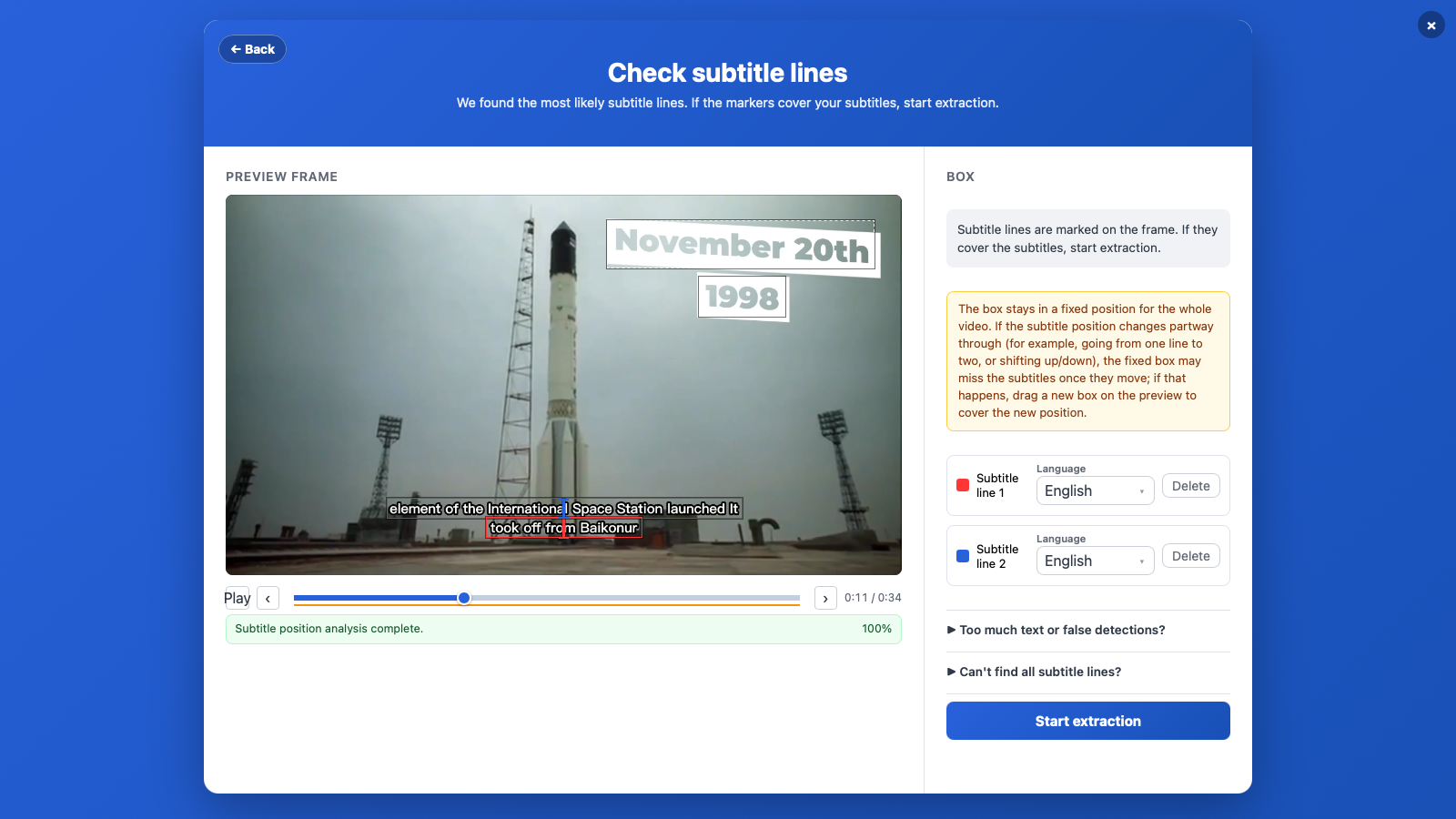
- Wait for position analysisThe picker opens immediately while a background pre-scan checks the video for stable subtitle positions. You can play or scrub the video and draw a box while it runs, but the extraction button stays disabled until the analysis finishes. The suggested lines then appear for review.
- Review the subtitle linesWhen the position analysis finishes, every stable text line is shown automatically — subtitles and channel badges each get their own entry with a language dropdown (pre-filled). Delete the lines you don't want, check each line's language, and click "Start extraction". Missed a line? Drag a box around it on the frame to add it (see details below).
- Color sampling (optional)Only if you turned on "Fine-tune subtitle filtering by color" in More settings: you enter the color picker step -- paint over the subtitle text on a video frame to sample its color (see details below). Otherwise OCR reads every line in the box and this step is skipped.
- Confirm colorAfter painting in the color picker, click "Confirm Color" to continue.
- Wait for OCR to finishThe system automatically scans video frames to extract text content.
- View resultsDone! Open the subtitle editor to view and edit the recognition results.
Review the Subtitle Lines
After you click Run, the region picker opens immediately. A background pre-scan checks the first five minutes of the video at 1 frame per second (or the full available duration for a shorter video), with its progress and scan position shown below the timeline. You can play, scrub, or draw a box while this runs. When the analysis finishes, the suggested lines are added and you can review each language (pre-filled automatically, but do verify it), scrub the timeline to double-check, and click "Start extraction". The button stays disabled until the analysis is complete. The languages you confirm also pick the recognition engine automatically: keep one Chinese line and one English line and bilingual recognition turns on by itself.
If a line was missed, drag a box around it on the frame — it is added as a Subtitle box with exact bounds: OCR reads exactly what you framed, nothing more. Detected lines and your boxes coexist, and every entry can be removed with its Delete button. OCR reads only the confirmed lines and boxes and ignores everything else on screen.
Two helpers cover edge cases: Scan more of the video runs an optional wider scan (up to the first 20 minutes) to find sparse subtitles that appear later and may take several minutes, and Convert for preview appears if the video will not play in the picker (older systems) - one click converts a preview copy, recognition unaffected.
While recognition runs you stay in control: Stop task next to the progress bar cancels the run (recognized parts are kept), and Review live in editor opens the subtitle editor read-only so you can check results against the picture as each segment completes.
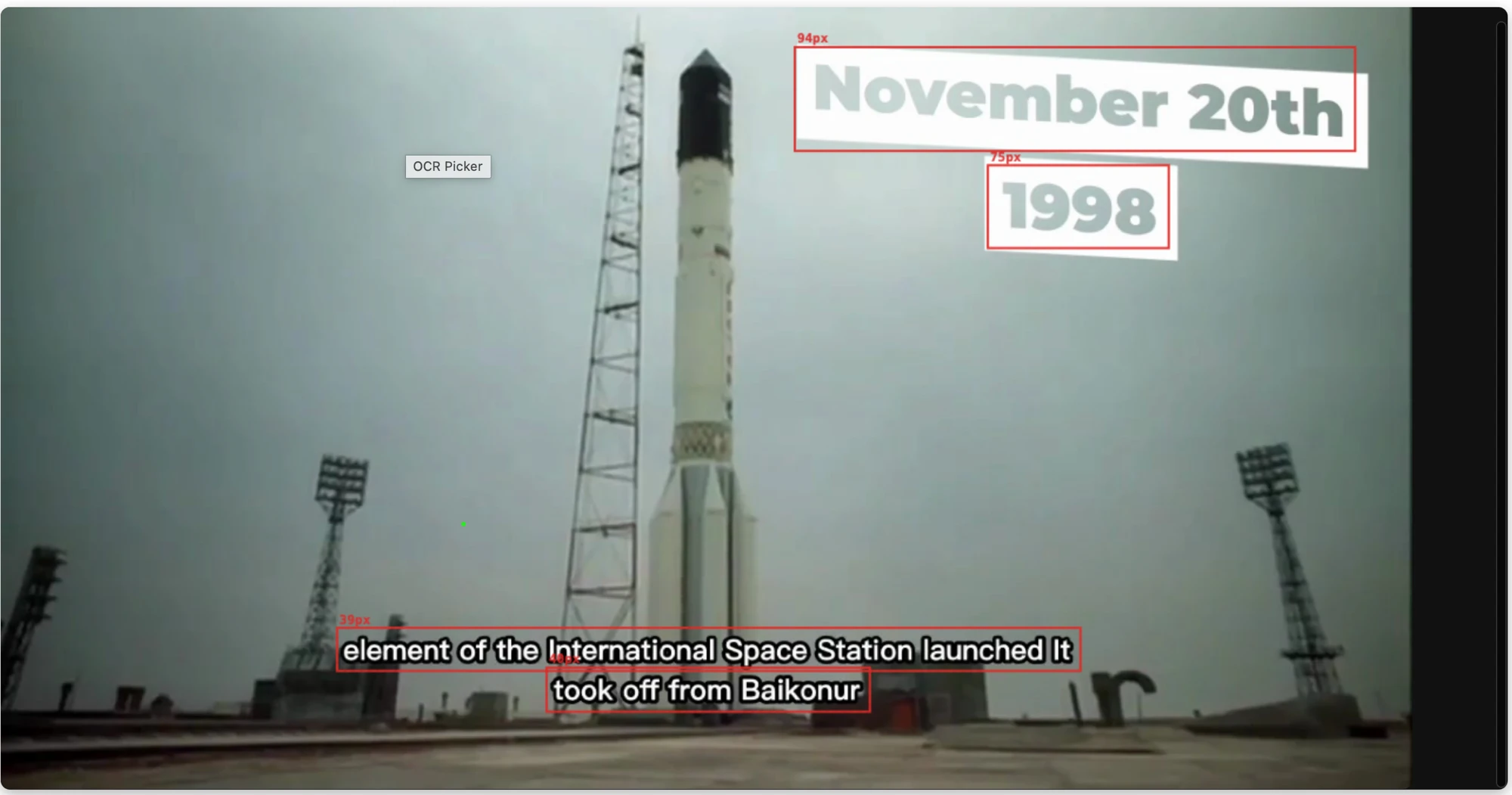
Once the position analysis has finished, the region picker highlights detected text areas live: pause or scrub the timeline and boxes appear around every piece of text OCR will pick up, so you can see at a glance whether your box is accurate and whether stray text is sneaking in (tick "Hide detected text boxes" to turn the overlay off). If small interfering text ends up inside your box — game UI numbers, corner captions — drag the "Ignore small text" slider: filtered boxes fade out in real time, so just drag until only the subtitle stays highlighted.
Fine-Tune Subtitle Filtering by Color (Optional)
By default OCR reads every line of text inside your box. If the box still catches subtitle-sized clutter — a watermark or on-screen label sitting in the same area — turn on "Fine-tune subtitle filtering by color" in More settings. It adds a picker step where you isolate the real subtitle by its color. Leave it off and OCR simply reads everything in the box. (Filtering by font size is now built into the region-picker step via the "Ignore small text" slider — no need to enable this option for that.)
Sample the subtitle color
- Use the mouse to paint over the subtitle text area on the video frame; the system automatically collects the color at the painted positions
- Use the +/- buttons to zoom in/out for precise painting on small subtitles
- Made a mistake? Click "Clear Paint" to start over
- Once the minimum sample size is reached, the "Confirm Color" button becomes clickable
Try to paint directly on the subtitle text strokes and avoid the background area around them -- the more accurate the sampling, the better the recognition results.
Where did font-size filtering go?
Font-size filtering moved forward into the region-picker step: drag the "Ignore small text" slider and watch detection boxes fade in real time to drop small interfering text — no more typing pixel values here. The color picker now does one thing: color sampling.
Filter Out Another Language (Optional)
Some frames carry burned-in text in two scripts at once — for example a Japanese video with Chinese subtitles added on top, or on-screen signage in one language under a caption in another. The "Filter text" setting lets you exclude a whole script so OCR ignores it: pick the language you don't want (Japanese, Korean, Chinese, Thai, or Arabic) and that text is dropped, leaving just your subtitle line.
OCR Settings Explained
| Setting | Description | Recommendation |
|---|---|---|
| Ignore flash text | Drops subtitle lines shorter than the threshold (misread lights, fade-out frames) — Off / 0.15s / 0.28s (default) / 0.5s | Keep the default. The language of each subtitle line is now set in the region picker, per line |
| Detection interval | How often GeekLink checks for a frame change — 0.1s (Finest) / 0.25s (Fine) / 0.3s (Accurate) / 0.5s (Standard) / 1.0s (Fast, less accurate) | The default (0.3s) suits most videos; drop to 0.1s for fast-flashing subtitles, at the cost of a longer run |
| Filter text | Exclude a whole script from the result — Thai, Japanese, Korean, Chinese, or Arabic | Use when the frame carries burned-in text in a language you don't want (e.g. a Japanese video with Chinese subtitles — filter out Japanese) |
| Fine-tune subtitle filtering by color | Off (default) = read every line inside your box. On = add a picker step that isolates the subtitle by its color and font size | Turn on for cluttered frames where a watermark, logo, or on-screen label sits inside the box and shares the subtitle's area |
FAQ
Why is the output full of garbled text?
The color sampling may not be precise enough, causing the OCR engine to treat background textures as text. Try re-sampling and paint only on the subtitle text strokes. You can also switch to a frame with clearer subtitles and try again. For a deeper guide on keeping only the subtitles and filtering out watermarks, logos, and on-screen text, see how to extract only the subtitles and how to ignore foreign-language logos.
What languages are supported?
OCR currently supports the following languages: English, Simplified Chinese, Traditional Chinese, Chinese-English bilingual, Japanese, Korean, Vietnamese, Spanish, Portuguese, French, German, Italian, and Indonesian.
Why are some subtitles not detected?
The detection interval may be too large, causing subtitles that flash by quickly to be missed. Try lowering the detection interval to 0.1s (Finest) to capture fast-flashing subtitles. The trade-off is a longer processing time.