Choose Your Task
Install GeekLink, choose OCR, Transcribe, or Translate, and complete your first subtitle task.
System Requirements
| Item | Minimum Requirement |
|---|---|
| macOS | macOS 13 Ventura or later; Apple Silicon (M1/M2/M3/M4) only. Intel is not supported. |
| Windows | 64-bit Windows desktop |
| Memory | At least 4 GB (8 GB or more recommended for better recognition performance) |
| Disk Space | Allow several GB if you download larger speech-recognition models |
Installation
- Download the installer Go to geeklink.dev and download the macOS DMG or Windows ZIP for your computer.
- Install or extract GeekLink On macOS, open the DMG and drag GeekLink to Applications. On Windows, extract the ZIP before launching GeekLink.
- Launch for the first time Open GeekLink from Applications on macOS, or from the extracted folder on Windows.
Choose Your Task
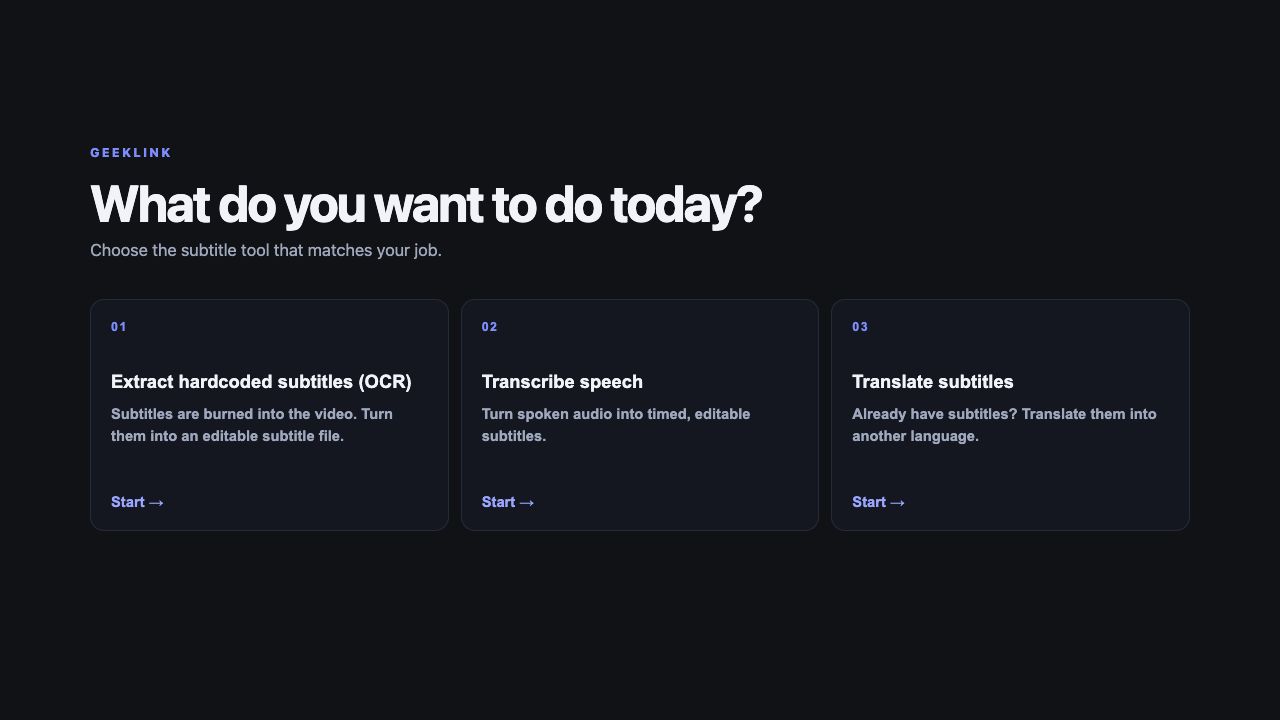
GeekLink now opens with one question: What do you want to do today? Choose the workspace that matches your job:
- Extract hardcoded subtitles (OCR) — for subtitles already visible in the video image
- Transcribe speech — for video or audio that does not have subtitles yet
- Translate subtitles — for a video that already has source subtitles, including an SRT you bring yourself
After you choose, GeekLink keeps that workspace focused. The small Change task link returns to the chooser when you need a different job.
Try a Built-In Demo
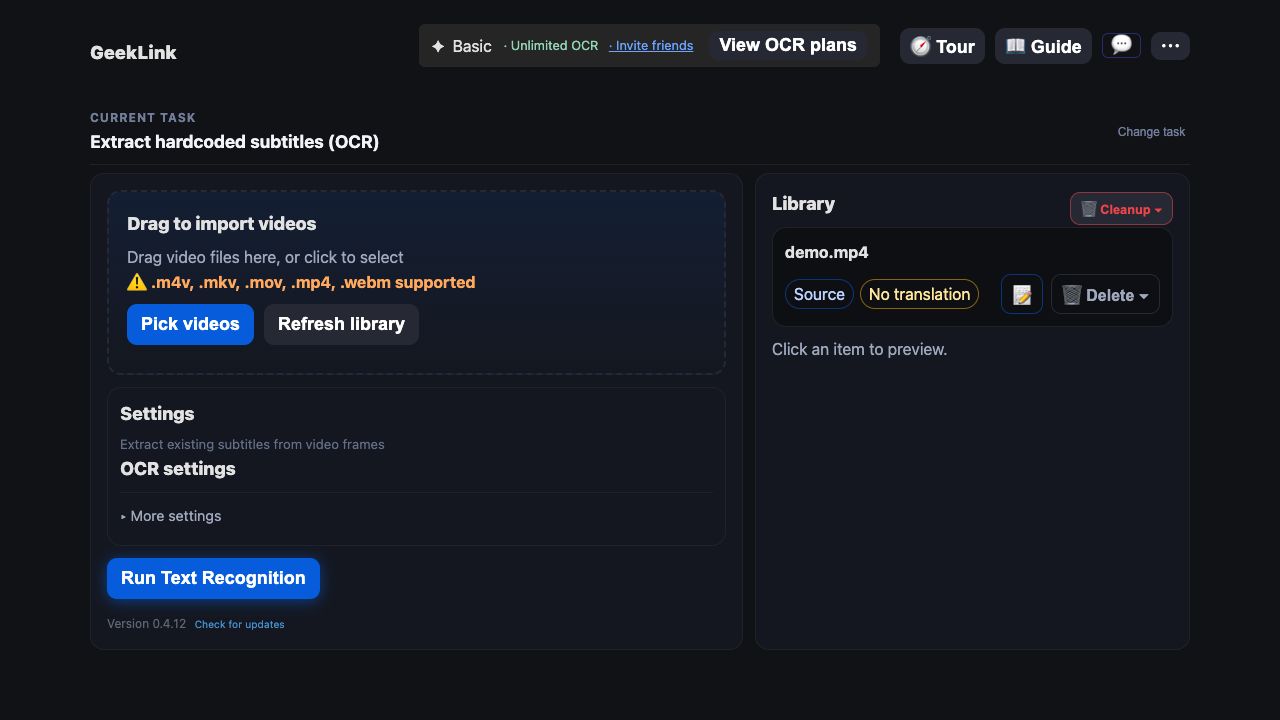
Each empty workspace shows only the demo relevant to that task. OCR loads an OCR clip; Transcribe loads a speech clip. Translation deliberately loads its demo in two steps — first the video, then its matching source SRT — so you can see that translation needs both.
Run Your First Task
Here is the speech-to-translation flow when you do not already have a source SRT:
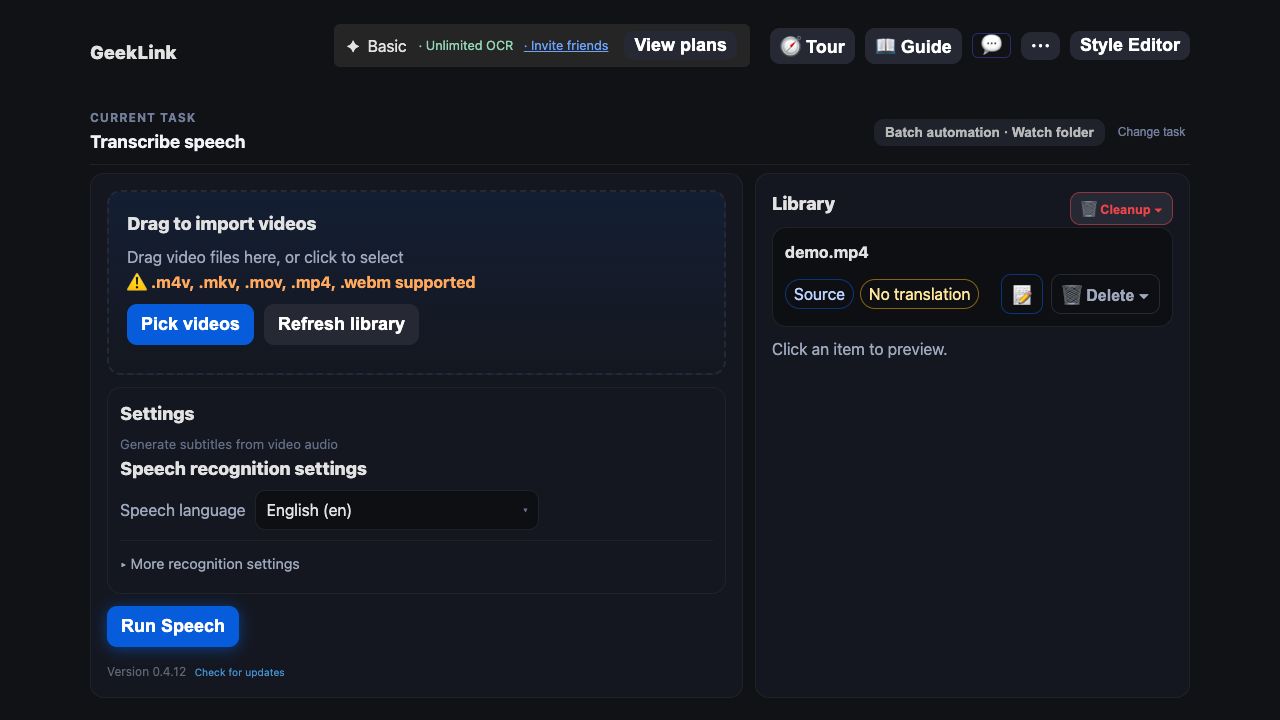
- Import a video Choose Transcribe speech, then drag in a video or load the Speech Recognition Demo.
- Configure recognition Choose the source language and recognition model. Expand More settings only when you need the advanced options.
- Run Speech Recognition GeekLink creates editable source subtitles from the spoken audio.
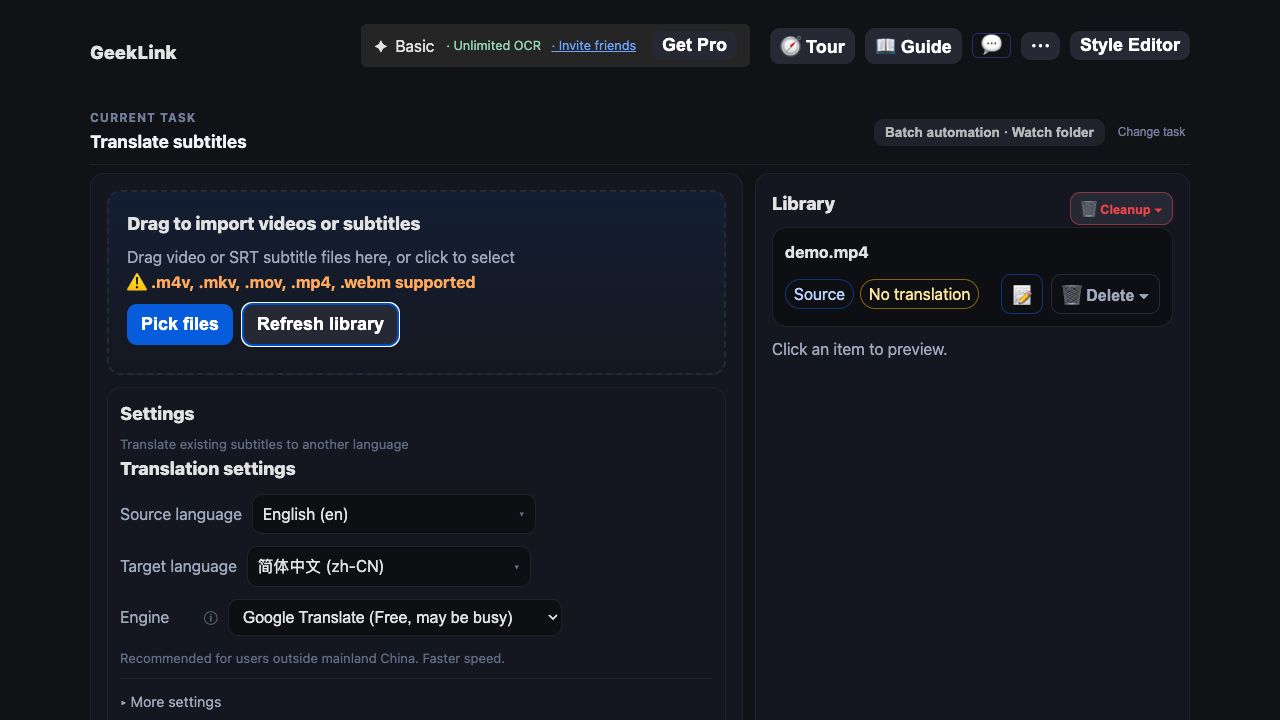
- Continue to Translate When recognition finishes, use Continue to Translate. GeekLink opens the Translation workspace with the recognized source subtitles ready.
- View the results Choose the target language and engine, run translation, then open the subtitle editor to review the source and translated tracks.
Next Steps
Once you know which workflow fits, use the focused guide for that product:
- Extract hardcoded subtitles (OCR) — Read subtitles already visible in the video
- Transcribe speech — Create source subtitles from spoken audio
- Translate subtitles — Translate a source SRT into another language
- Subtitle editor — Review and correct the result
- Export files — Export the formats relevant to your current task
- Keyboard Shortcuts — Boost your editing efficiency