TL;DR: Hardcoded (burned-in) subtitles are baked into the video image and can't be turned off, so to get editable text back you have to "read" the words off the picture (the technical name is OCR). In GeekLink you pick "Extract hardcoded subtitles (OCR)" when you start, import the video, and it automatically finds the likely subtitle lines before extraction — you can review the suggestions or adjust them if needed, and it runs locally on your computer. It reads the text frame by frame into a timestamped SRT you can edit, translate, or re-burn. It's a free direct download for Mac and Windows from geeklink.dev, runs fully offline, and handles Chinese, Japanese, Korean, English and more.
If you searched "extract hardcoded subtitles," you have a video where the captions are part of the picture — common with Chinese short dramas, Douyin/Bilibili reposts, DVD rips, and social clips. Here's exactly how to turn those baked-in captions back into an editable subtitle file.
What are hardcoded subtitles, and why can't you turn them off?
Hardcoded subtitles — also called hard subs, hardsubs, burned-in, or open captions — are text permanently rendered into the video frames during editing, so no player can hide them. Unlike soft subtitles (SRT/ASS files that ride alongside the video), there's no separate text track to grab.
To get an editable file, you have to read the text off the picture with OCR (Optical Character Recognition). This is the first step whenever you want to translate a video that only has burned-in captions — you can't translate what isn't text yet.
Hardcoded vs embedded subtitles: what's the difference?
Embedded subtitles are a separate text track hidden inside the video file — you can toggle them on or off, and you never need OCR to get them out. Hardcoded subtitles are painted into the picture and can't be toggled, which is exactly why they need OCR.
Quick way to tell which one you're holding:
- Can you switch the captions off in a player like VLC or QuickTime? Then they're embedded (also called soft or toggleable) — export the track directly, no OCR needed.
- Do the captions stay on screen no matter what — different player, different device, scrubbing around? Then they're hardcoded, and OCR is the only way to get editable text back.
Most Douyin/Bilibili reposts, short dramas, and social clips are hardcoded. If you're unsure which you have, see Embedded vs Burned-in vs External Subtitles.
How do you extract hardcoded subtitles, step by step?
The whole flow runs locally in GeekLink — your video never leaves your computer.
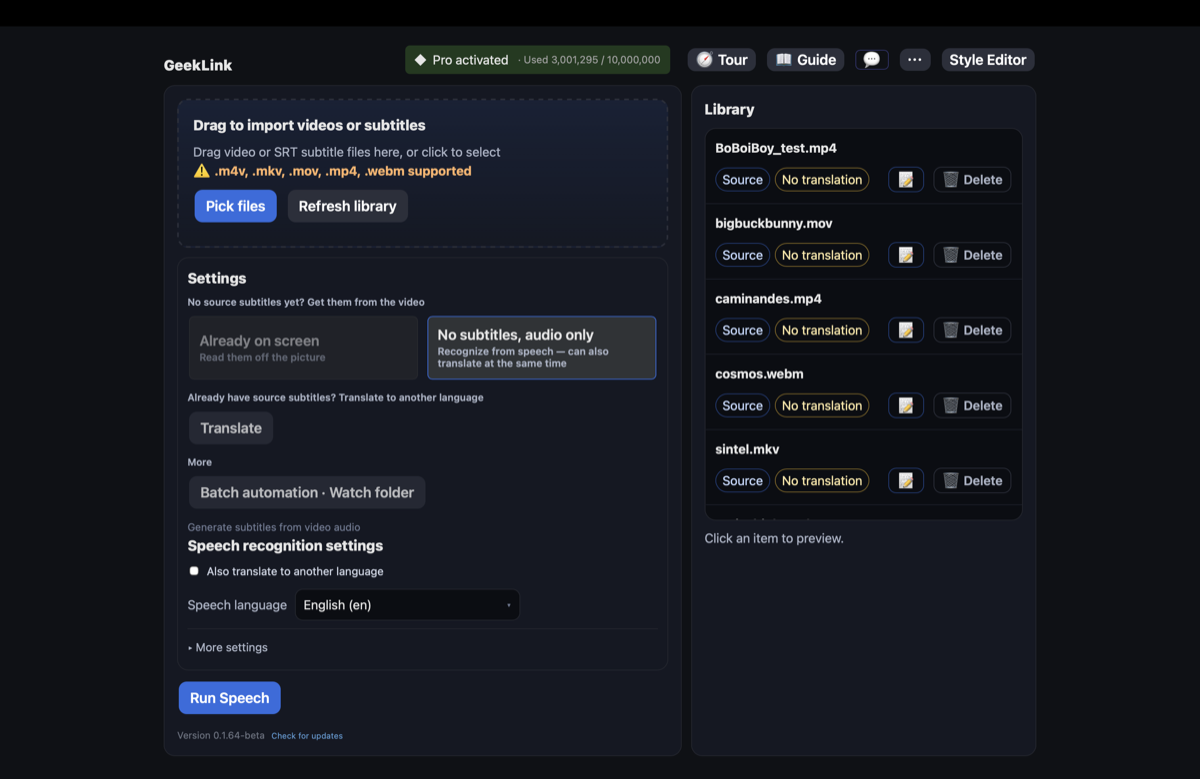
- Pick "Extract hardcoded subtitles (OCR)" — that's the option on GeekLink's home screen for video where the subtitles are baked into the image.
- Import the video — drop in the video with burned-in subtitles (MP4, MOV, MKV, and more).
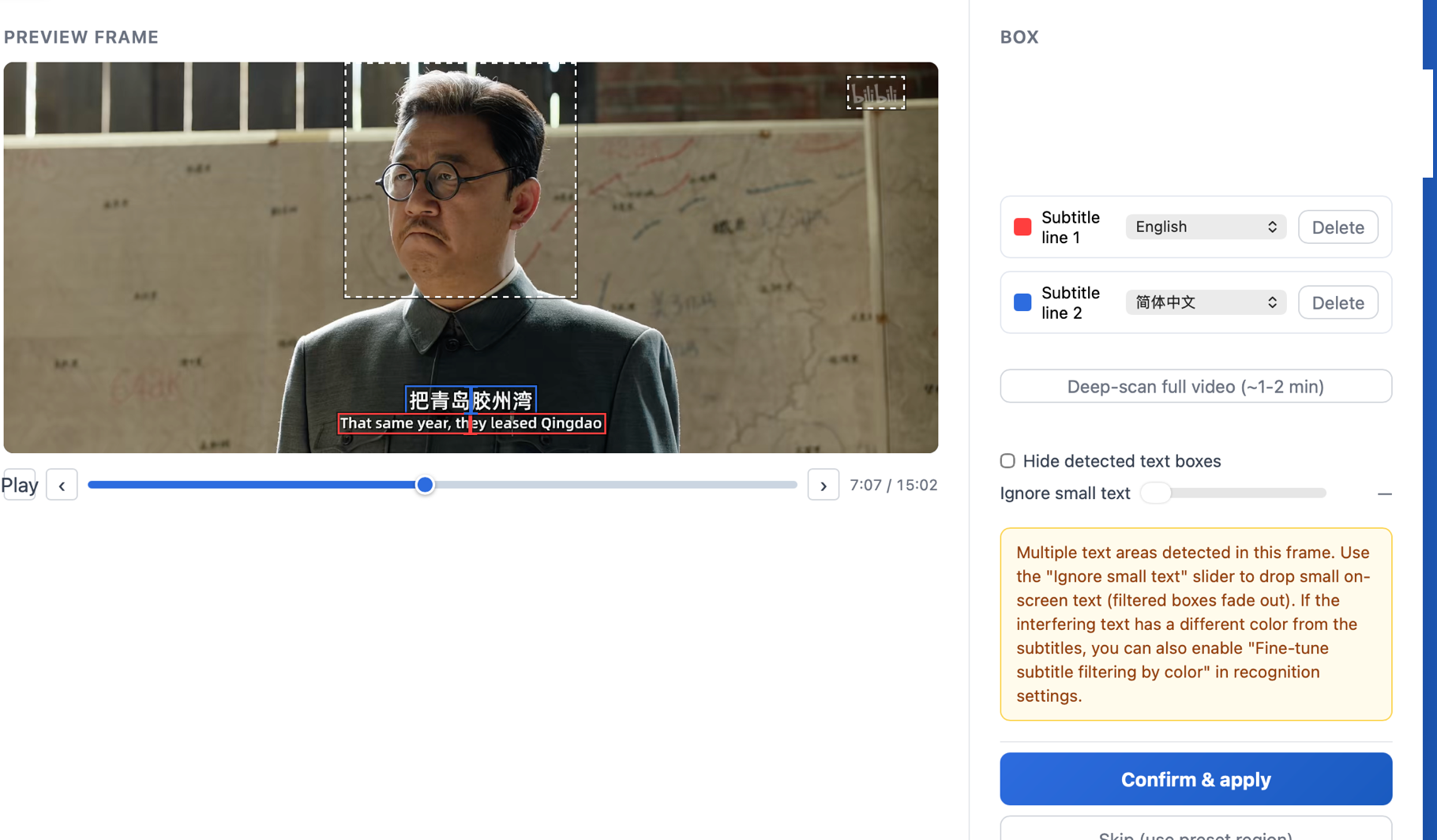
- Review the automatically detected subtitle lines — GeekLink scans the video and marks the likely subtitle positions. Keep the lines you want; if subtitles move or a candidate is missing, you can add or adjust a box manually.
- Run OCR extraction — GeekLink detects where the text changes between frames and builds a timestamped subtitle file, all on your computer.
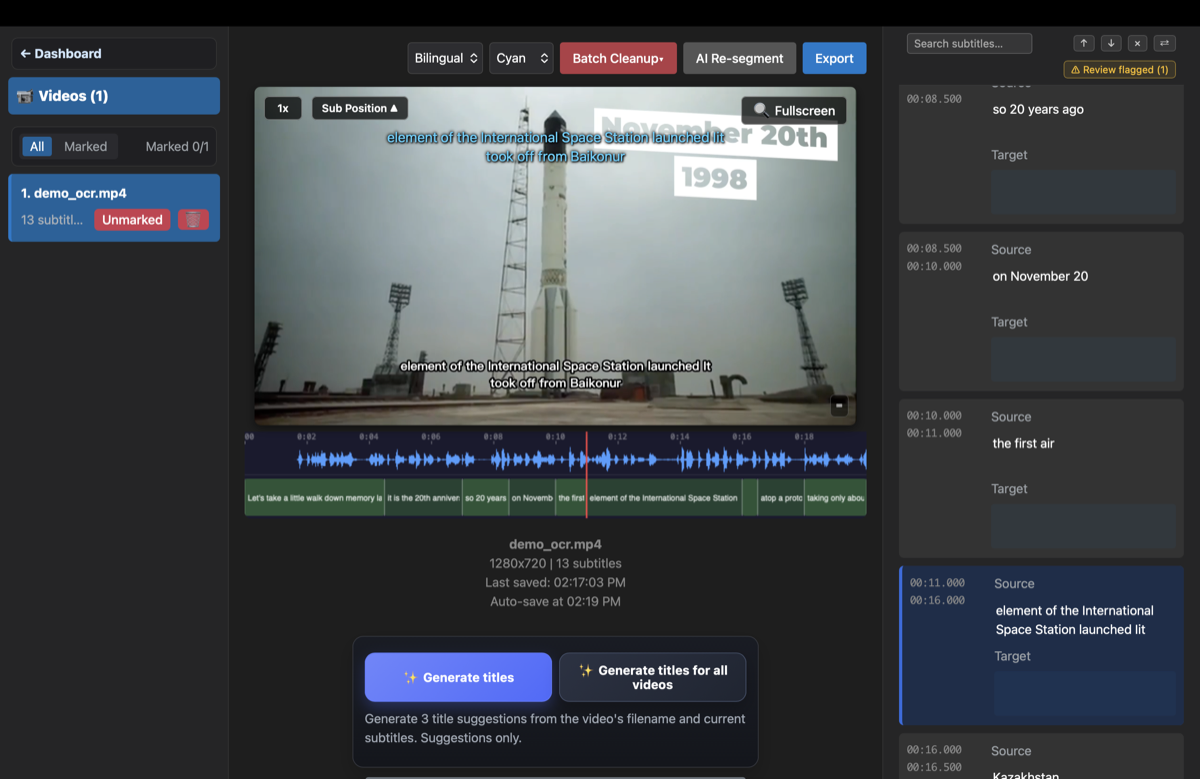
- Review and export — fix any OCR slips in the built-in editor (it flags the lines worth checking), then export SRT — or translate it with the AI subtitle translator and burn new subtitles in.
Why is GeekLink faster than traditional video OCR tools?
GeekLink is faster because it treats subtitles as subtitle lines, not as thousands of unrelated screenshots. Its purpose-built subtitle-line detection scans the video first and automatically finds the stable rows where captions actually appear, including separate lines in bilingual and two-line subtitles. OCR then focuses on the lines you confirm instead of repeatedly reading the whole frame or every piece of text inside one broad crop.
For videos with stable subtitle lines, GeekLink can skip the usual fixed-crop setup and finish much faster. It finds the actual subtitle lines for you, while logos, watermarks, and unrelated on-screen text stay out of the recognition path. On long material such as a two- or three-hour Chinese short drama, doing less irrelevant OCR work makes a major difference. You review the detected lines; if the captions move, use an unusual layout, or a line is missed, you can still add a manual box.
How do you extract subtitles from an MP4?
First check whether the MP4's subtitles are a real text track or burned into the picture — that one answer decides your tool. MP4 is just a container and can hold either kind.
- If the captions can be turned off in a player, the MP4 carries a soft subtitle track — you can pull the SRT straight out, no OCR involved.
- If they're always on screen, they're hardcoded — pick "Extract hardcoded subtitles (OCR)" in GeekLink, import the MP4, review the automatically detected subtitle lines, and run OCR (the five steps above). The exact same flow works for MOV, MKV, and TS files.
How do you stop OCR from grabbing logos and watermarks?
News clips, short dramas, and reposts are full of on-screen clutter — channel logos, "NEWS" badges, big background graphics. You only want the subtitle line.
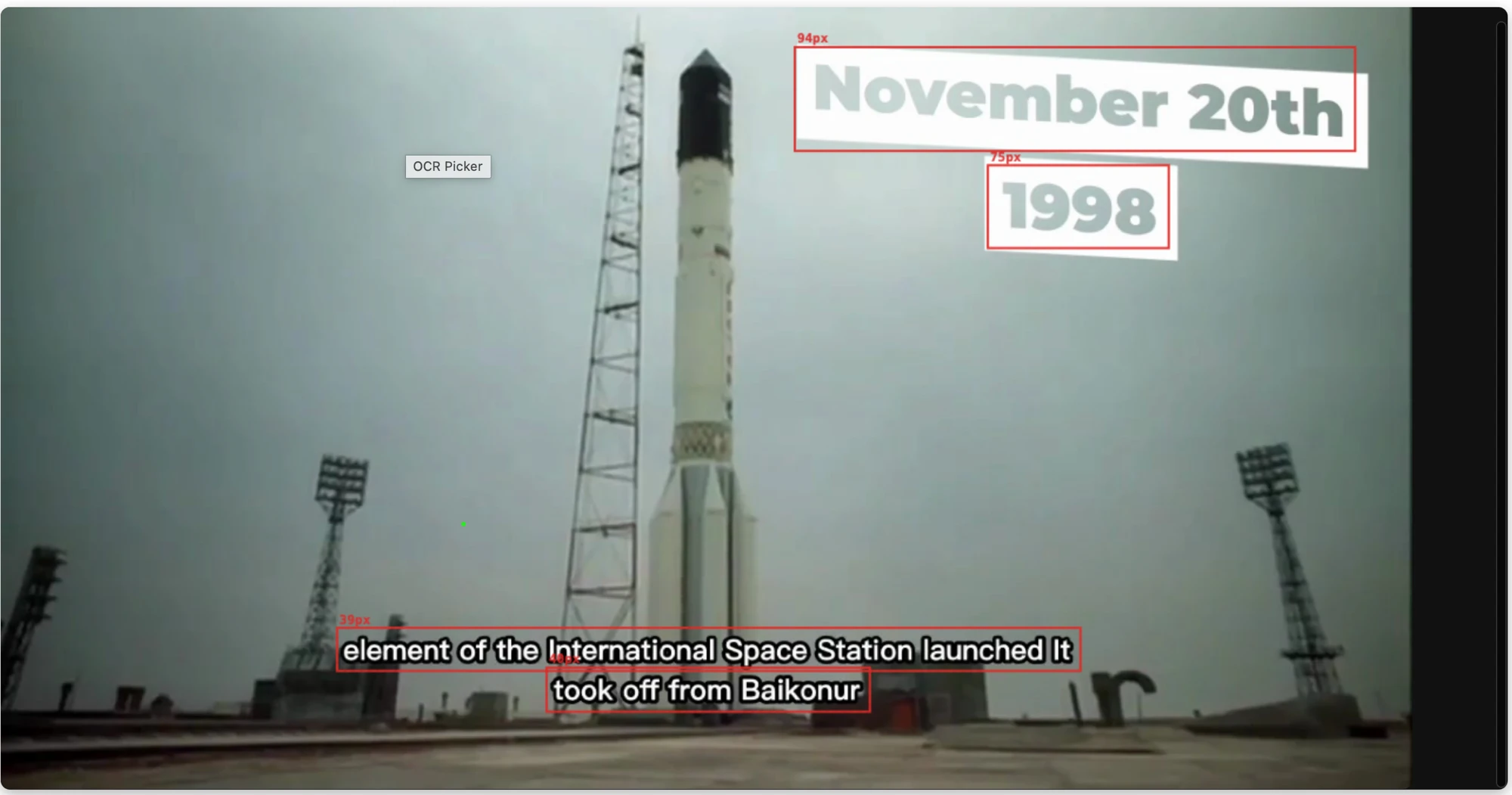
GeekLink automatically finds likely subtitle lines and can further filter by font size and color — so OCR keeps only the text that looks like a subtitle and drops everything else. It detects every piece of text on the frame and labels its size; you brush over the real subtitle to sample its color. Then OCR keeps, say, the small white caption line and ignores the giant logo and the watermark.
How do you extract hardcoded subtitles from anime?
Anime fansubs are usually hardcoded, often with stylized fonts, colored text, and karaoke or sign typesetting — GeekLink automatically finds likely text lines, so you can review the dialogue candidates and remove signs or effects before extraction.
- Keep the dialogue line at the bottom and remove top-of-screen sign translations or karaoke lyrics so they don't get mixed into your subtitles.
- Japanese and Chinese subs: GeekLink's CJK models read kanji, kana, and hanzi that generic OCR mangles.
- If the subtitle position moves, add or adjust a box on the preview; fixed-position subtitles usually need no manual region selection.
- If the raw has clean Japanese audio and the burned-in text is heavily styled, speech recognition (Whisper) can be the faster path — GeekLink does both, so you can compare.
How accurate is OCR, and how do you get the best results?
For clean subtitles at 720p or higher, OCR typically lands around 90–98% accurate — and GeekLink's built-in editor lets you fix the rest fast by flagging only the lines it's unsure about, so you don't re-read every line.
To get the best results:
- Use high-resolution video (720p+) — more pixels per character means cleaner reads.
- Make sure subtitles have good contrast against the background.
- Automatic subtitle-line detection: GeekLink finds likely subtitle positions before OCR; you can refine the suggestions when a video needs it.
- For Chinese / Japanese / Korean, GeekLink uses specialized CJK models that beat generic OCR.
When the burned-in text is too small or blurry but the audio is clean, speech recognition (Whisper) can be the better path — GeekLink does both. If you want Claude or Codex to choose the extraction path, inspect subtitle regions and review the resulting cues, our Subtitle MCP Server guide explains the current tools. Connect it with the Connect AI (MCP) button — currently Mac-only.
An AI assistant extracts, checks and translates the burned-in subtitles of three episodes. English captions.
Can I extract subtitles from any video?
Almost — if a person can read the captions on screen, OCR can usually extract them. The limits are readability, not file format.
- Works well: clean burned-in subtitles at 720p or higher, in any language, in any container (MP4, MOV, MKV).
- Harder: very low resolution, heavy compression artifacts, moving or animated text, or captions over busy backgrounds with poor contrast.
- No text on screen at all? There's nothing for OCR to read — use speech recognition to transcribe the video's audio into subtitles instead.
Why use GeekLink for OCR extraction?
- 100% local: OCR runs entirely on your computer — no uploading your video to a cloud service.
- Multi-script: Chinese (simplified/traditional), Japanese (kanji + kana), Korean (Hangul), Arabic (RTL), and Latin scripts.
- Optional manual adjustment: add or refine a region box for moving subtitles or unusual layouts.
- Flags the lines worth checking: you review a small handful instead of reading every cue.
- One workflow: extract → edit → translate → burn-in, without switching tools.
Frequently Asked Questions
Is there an AI that can recognize text inside a video?
Yes — when the words are already visible in the video frames, use video OCR rather than speech transcription. GeekLink reads burned-in subtitle text locally and turns it into timestamped, editable subtitles; if there is no visible text, use speech recognition instead.
I only have the finished, already-exported video — is there a tool that can read the burned-in captions and turn them back into editable text?
Yes — you don't need the original editing project or a separate text file, just the exported video itself. Drop it into GeekLink under "Extract hardcoded subtitles (OCR)," and it reads the burned-in captions frame by frame and generates an editable, timestamped SRT automatically, entirely on your computer.
What are hardcoded subtitles?
Hardcoded (burned-in) subtitles are text permanently rendered into the video image during editing. Unlike soft subtitles (SRT/ASS files), they cannot be turned off in the player.
Can OCR extract subtitles from any language?
GeekLink's OCR supports Chinese, Japanese, Korean, English, and most Latin-script languages. Arabic and Thai are also supported with specialized models.
How accurate is OCR vs speech recognition?
OCR accuracy depends on video quality and subtitle clarity — typically 90-98% for clean subtitles at 720p+. Speech recognition (Whisper) is better when the burned-in text is unclear but the audio is clean.
Can I remove hardcoded subtitles from a video?
GeekLink extracts the text as a subtitle file but does not erase the visual subtitles from the video. To "replace" them, overlay new translated subtitles on top.
Does my video get uploaded anywhere?
No. OCR runs locally on your computer — the video never leaves your device.
How do I download GeekLink for Mac or Windows?
Both desktop builds are free direct downloads from geeklink.dev. Get the DMG for Mac or the 64-bit ZIP for Windows; no app store, account, or login required.
Are the subtitle timings accurate?
Yes. GeekLink detects, frame by frame, when each subtitle line appears and disappears, so the exported SRT is time-aligned to the video — useful even if you only care about the timing and not perfect text (e.g. making subs2srs cards for language learning).
How do I extract subtitles from an MP4?
Check whether the MP4's captions can be toggled off in a player. If they can, it's a soft track you can export directly. If they stay on screen no matter what, they're hardcoded — pick "Extract hardcoded subtitles (OCR)" in GeekLink, import the MP4, review the automatically detected subtitle lines, and run OCR. The same works for MOV, MKV, and TS.
Can I extract subtitles from anime?
Yes. Anime fansubs are usually hardcoded. GeekLink automatically finds likely text lines; keep the bottom dialogue line and remove sign translations or karaoke effects from the suggestions. If the subtitle position moves, you can add or adjust a box. GeekLink's CJK models handle Japanese and Chinese text well, and if the audio is clean you can use speech recognition instead.
Related Articles
Disclosure: GeekLink is our own product. OCR accuracy figures are typical ranges for clean 720p+ subtitles and vary with video quality.