TL;DR: subs2srs (sentence mining into Anki) needs a timed subtitle file plus the audio. But a lot of immersion material — anime rips, Japanese YouTube, C-dramas — has its subtitles burned into the picture, so there's no subtitle file for subs2srs to work with. That's why subs2srs guides tell you to avoid hardcoded content. The fix: OCR the burned-in subtitles into a timed SRT first, then feed that SRT plus the video into subs2srs. GeekLink does the OCR step on Mac with frame-accurate timing (which is exactly what subs2srs relies on); and if the video has no subtitles at all, it can transcribe the audio instead.
If you found a perfect immersion video — the right level, a topic you love — but the subtitles are stuck in the picture, you don't have to give it up. You just need one extra step before subs2srs.
Why can't subs2srs use hardcoded subtitles?
subs2srs builds Anki cards by slicing the video's audio and screenshots along the timestamps in a subtitle file. It needs an actual .srt/.ass file with timings.
Hardcoded (burned-in) subtitles aren't a file — they're pixels painted into every frame. There's no timed text for subs2srs to slice against, which is why the standard advice is literally "download versions that do not have subtitles hardcoded into them." In-player mining tools like Yomitan or SubMiner have the same limit: they read a real subtitle track shown in the player, not text burned into the image.
So the missing step is turning those burned-in subtitles back into a timed subtitle file — which is OCR of the video frames.
Turn burned-in subtitles into a subs2srs-ready SRT (on Mac)
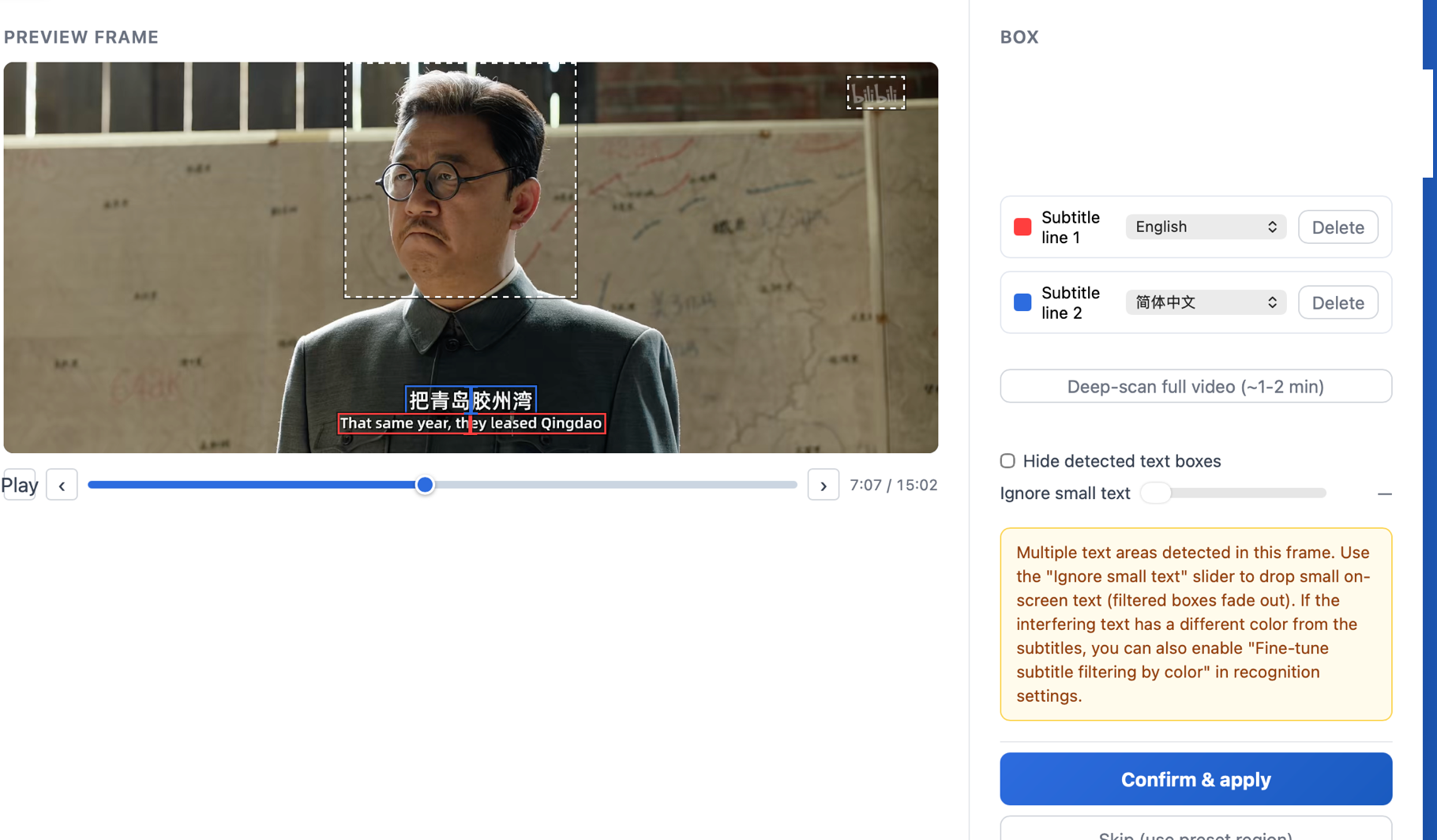
- OCR the hardcoded subtitles with GeekLink. Import the video, choose "the subtitles are already on screen," and review the subtitle lines GeekLink detects automatically. It reads the confirmed rows into a timed, editable SRT — locally, free.
- Fix anything flagged. GeekLink marks the lines it's unsure about, so you correct a handful instead of re-reading everything — important because clean text makes cleaner cards.
- Feed the SRT + video into subs2srs. Now that you have a real subtitle file with correct timings, subs2srs slices the audio and screenshots normally and builds your deck.
- Import into Anki and study.
Why timing accuracy matters for subs2srs
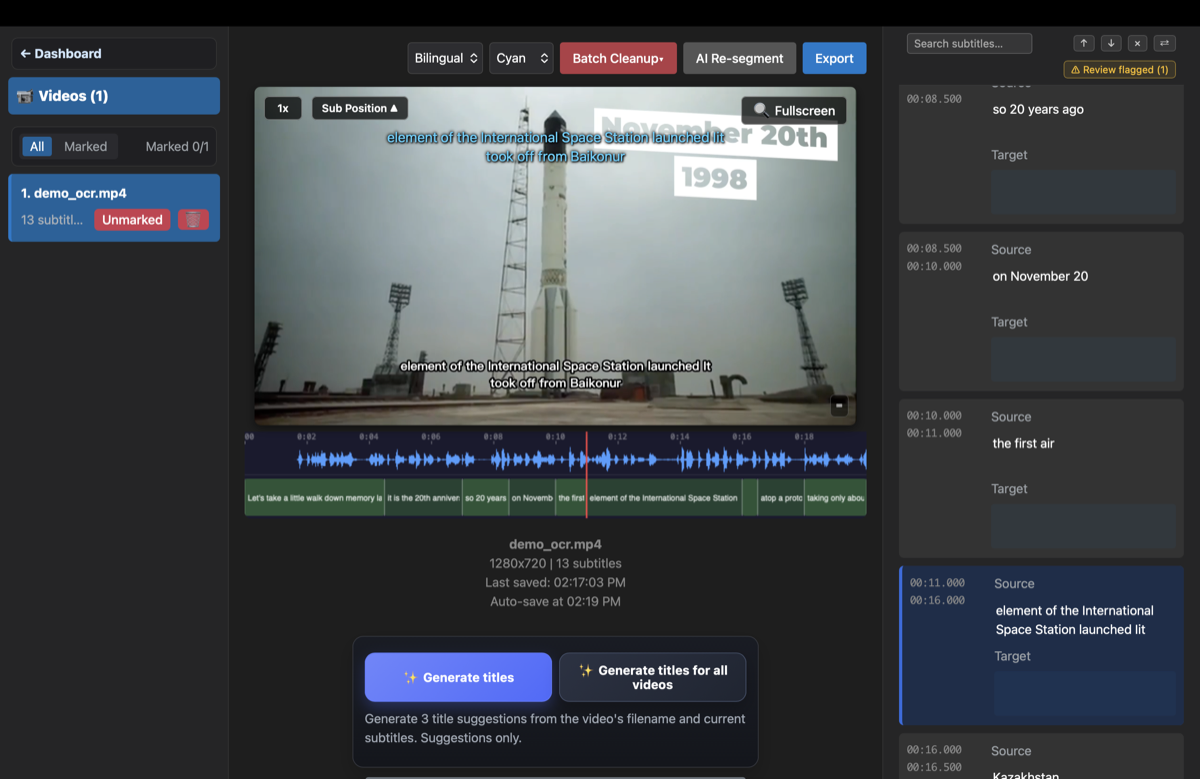
subs2srs cuts each card's audio using the start/end timestamps of the subtitle line. If the timings are off, your cards play the wrong audio — the clip starts too early or clips the sentence. This is the part beginners get wrong when they hand-time subtitles.
GeekLink detects, frame by frame, exactly when each subtitle line appears and disappears, so the SRT is time-aligned to the video. Even if you don't care about perfect OCR text (you'll recognize the word from the audio anyway), the timing comes out right — which is what makes the cards usable.
What if the video has no subtitles at all?
Sometimes your immersion clip has clean audio but no on-screen subtitles to OCR. In that case, skip OCR and generate the subtitles from the audio — GeekLink transcribes speech to a timed SRT (based on Whisper), which you then feed into subs2srs the same way. One app covers both the burned-in case and the audio-only case.
Tools that pair well with this workflow
GeekLink covers one step: getting a timed subtitle file out of a video whose subtitles are burned in. Depending on how you study, these tools handle the steps before and after it. None of them are ours, and we are not paid to mention them.
- Pulltube (Mac) — a video downloader that saves the video, the audio and any subtitle tracks the site exposes. Useful for grabbing the immersion clip in the first place; if the download turns out to have its subtitles burned into the picture, that is where GeekLink comes in.
- NextLang — turns a subtitle file (.srt, .vtt, .ass and more) into an Anki deck with pronunciation audio, handling lemmatization and duplicates for you. If you mainly want vocabulary cards rather than full subs2srs sentence cards, feed it the SRT that GeekLink produces.
- Subtitle Tools — free browser-based utilities for subtitle files: convert formats, fix timing and encoding, and turn Chinese subtitles into pinyin subtitles. It works only with existing subtitle files, so for burned-in Chinese, OCR the video with GeekLink first and then add pinyin there.
- substudy — an experimental tool by Eric Kidd that takes a video plus subtitles in two languages and builds bilingual subtitles, review pages with audio clips and Anki decks. Once GeekLink has given you the target-language SRT, pair it with a translation to feed substudy.
- Lexirise — a browser extension for learning Japanese on Crunchyroll, Netflix, Prime Video and YouTube. On Crunchyroll it finds a Japanese subtitle file for the episode and syncs it to the video, so you can read along interactively.
- Linglass — a Chrome extension and iPhone app for learning Chinese from C-dramas on YouTube, Netflix, iQIYI and Viki, with dual subtitles, word segmentation and pinyin. It works with real subtitle tracks; when a drama only has burned-in Chinese, OCR it into an SRT with GeekLink to get text you can study.
- immit — a Chrome extension and desktop app (Mac, Windows, Linux) that lets you hover any Japanese on a webpage to look it up, save the word in one click and review it with built-in spaced repetition.
If you would rather build the OCR step yourself, Kerrick Staley wrote an early walkthrough, Extracting Chinese Hard Subs from a Video, using Tesseract and OpenCV. It is a good read on why burned-in subtitles are harder to recover than they look.
Frequently Asked Questions
Can I use subs2srs with hardcoded subtitles?
Not directly — subs2srs needs a subtitle file, and hardcoded subtitles are pixels in the picture, not a file. OCR them into a timed SRT first, then subs2srs works normally.
How do I get subtitles from anime (or a video) that has them burned in?
Run frame OCR: let GeekLink detect the likely subtitle lines automatically, confirm them, and turn the burned-in text into an editable, time-synced SRT. If automatic detection does not fit the video's layout, you can add the subtitle boxes manually. That SRT is what you feed into subs2srs or open in Anki tools.
Does OCR text accuracy matter for sentence mining?
Less than you'd think. For mining, the timing is what has to be right (so the audio clip is correct); small OCR text slips are easy to fix, and you'll recognize the word from the audio. GeekLink also flags the lines it's unsure about so you fix only those.
Does it work for Japanese, Chinese, and Korean?
Yes — GeekLink uses specialized CJK OCR models for Japanese (kanji + kana), Chinese (simplified/traditional), and Korean (Hangul), plus Latin scripts.
Is it free? Is it on the Mac App Store?
Extracting subtitles is free, with 60 minutes of OCR export every month. GeekLink is a direct download from geeklink.dev — not the Mac App Store — and no account is required.
Related Articles
Disclosure: GeekLink is our own product, built for burned-in subtitle OCR and speech-to-text on Mac. subs2srs and Anki are separate free tools we link to for the mining step.