TL;DR: Auto-generated subtitles are already good enough for most videos — with a small passover. The problem is the passover: most people reread every single line against the audio to catch the few mistakes, which throws away the time the AI just saved. The errors aren't random — they cluster in predictable spots: names, jargon, overlapping speech, and anything under music or noise. The fast way is to make the tool show you where it was unsure, then fix only those lines.
Most caption-QC tools only flag rule violations — reading speed, line length, timing overlaps. They can't tell you which words the AI actually misheard. GeekLink (Mac) flags the exact low-confidence word in each line and the segments where music or sound effects cover the speech, then exports an "SE review pack" — the SRT, clickable review bookmarks, and the video — that opens in the free Subtitle Edit, so you fix a small fraction of the file instead of rereading the whole transcript.
This guide explains the workflow end to end: why a review is still necessary, where the errors hide, how confidence flagging works, what GeekLink exports, and exactly how to fix the flagged lines in Subtitle Edit — including how to correct a misheard name once and apply it across an entire series.
Once transcription is "good enough", do AI subtitles still need fixing?
Modern speech recognition (Whisper and similar models) is highly accurate on clean, single-speaker audio. But accuracy collapses in predictable places: proper nouns, overlapping dialogue, shouting, accents, and any segment where background music or sound effects sit on top of the speech.
For a creator localizing real content — anime, variety shows, podcasts, music-production tutorials — those hard spots are exactly where the value is. A character name spelled wrong, or a line the model guessed through a loud music cue, is the difference between a clean export and one that looks machine-made.
The problem is not that AI subtitles are bad; it's that you can't tell which lines are wrong without checking. So people either trust the output blindly (and ship mistakes) or read all of it (and lose the time the AI saved). Both are bad. The fix is to let the model surface its own uncertainty.
How do you find and fix the errors in AI subtitles without reading every line?
Speech models produce a confidence score for every word, not just the text. A line where one word scored very low is a line the model was unsure about — and that is a strong signal of a likely mishearing.
GeekLink reads the per-word confidence and flags the single lowest-confidence word in each subtitle line, showing you both the word and its score (for example, Low conf? "customer" 0.22). You are not told "this line might be wrong" — you are told which word to look at.
1.0; this one scored 0.22 — it genuinely wasn't sure. "customer" and "contract" both fit the sentence, which is exactly why it couldn't decide. That low score is your cue to listen to this one line instead of rereading the whole file — here it was "contract."It adds a second signal for a failure mode confidence alone misses: music and sound-effect segments are detected separately and marked, because a line can read as high-confidence text while music is actually drowning out the real words. Lines that are both clean and confident are left alone.
GeekLink flags one more kind of problem — not a mishearing, but a line split in an awkward place:
do is show up.
to do is show up.
The result is a short shortlist instead of a full read-through. On a typical clip only a small fraction of lines get flagged, and those are the only ones you open.
What does GeekLink's SE review pack contain?
Rather than build yet another subtitle editor, GeekLink hands the review off to Subtitle Edit — a mature, free, open-source editor that now runs on Mac. The "SE review pack" is a single export containing everything Subtitle Edit needs to load the review in one click.
The pack is a per-video folder with three things:
- The subtitle file (.srt) — the recognized subtitles with accurate timestamps.
- Review bookmarks (.SE.bookmarks) — clickable markers on exactly the flagged lines. Low-confidence bookmarks name the suspect word and its score (
Low confidence: customer (p=0.22)); music bookmarks mark segments where audio may be covering speech; line-break bookmarks mark cues split in an awkward place. - The video (.mp4) — so you can check a line against the picture, not just the audio.
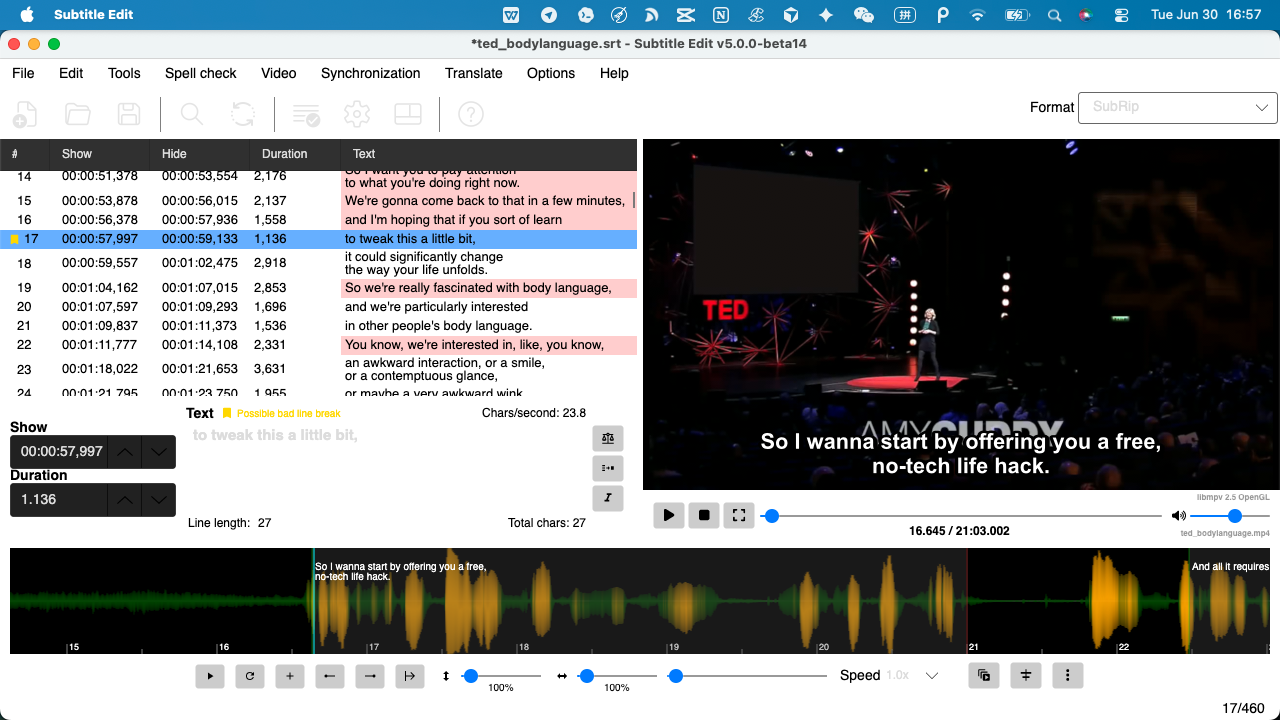
Because the SRT, bookmarks, and video share the same name in one folder, Subtitle Edit auto-loads all three when you open the .srt — the video appears in the preview and the bookmarks appear in the list, with no manual importing.
A sensitivity slider controls how aggressive the flagging is, so you can widen the net for noisy material or tighten it for clean audio. The default leans toward flagging a little extra rather than missing a real error.
How do you review the flagged lines in Subtitle Edit (step by step)?
The whole point is to jump straight to what matters. The workflow is short:
- Recognize the video in GeekLink. Speech recognition runs locally on your computer and produces the subtitles plus the per-word confidence data.
- Open Export and choose "SE review pack." Keep "Low confidence" and "Music marks" checked, and "Also export the video" if you want to check against the picture. Pick an output folder.
- Open the .srt in Subtitle Edit. The video and the bookmarks load automatically.
- Jump through the bookmarks. Each one lands you on a flagged line. Play the few seconds around it, read the named suspect word, and fix it if it's wrong.
- Skim the rest. Unflagged lines were confident and clean — not guaranteed perfect, but a quick glance is enough; you don't read them line by line.
You review a shortlist of marked lines, not the entire transcript — which is the difference between "AI saved me time" and "AI made me re-check its homework."
One fix that comes up a lot on the flagged lines is awkward line breaks — where a subtitle splits mid-phrase. That's its own task: see our guide to breaking subtitle lines naturally, which covers the rules and an AI line-breaker that re-flows lines by meaning. (Skip it for short back-and-forth dialogue, where it tends to merge separate speakers' lines.)
How do you fix recurring name errors across a whole series?
The same wrong name tends to recur — a character called "Niamh" misheard the same way in every episode. Fixing it line by line, episode by episode, is exactly the kind of work automation should remove.
There are two complementary places to fix it. In GeekLink, add the correct spelling to the auto-correction rules and the Whisper prompt, so future episodes recognize the name correctly up front — the prompt nudges recognition, and the rule deterministically replaces known mishearings after. Run episode one, collect the names it gets wrong, add them, and the rest of the season comes out consistent.
For subtitles you've already exported, use Subtitle Edit's built-in "Multiple Replace" to apply a find-and-replace rule list across the file in one pass — no re-recognition needed. Between the two, a name you correct once stays corrected everywhere.
Is reviewing flagged lines actually faster than proofreading manually?
Proofreading a full transcript means reading and time-checking every line whether or not it has an error. Reviewing flagged lines means you only open the small subset the model was unsure about, plus the segments where music could be hiding mistakes. On clean material that is a large reduction in lines touched; on noisy material the flags concentrate your attention exactly where errors cluster.
It is not magic — flagging has a recall limit, so a calm, perfectly-pronounced wrong word can still slip through, and a short exclamation can get flagged when it's fine. The honest framing is that confidence flagging compresses review, it doesn't eliminate it — but for a creator shipping volume, compressing a full read-through into a shortlist is the entire win.
FAQ
Do AI-generated subtitles need to be checked?
Yes, if accuracy matters to you. AI recognition is strong on clean audio but predictably slips on proper nouns, overlapping speech, accents, and music-covered segments. The practical approach is not to read everything, but to review the lines the model flags as low-confidence plus the segments where music may be covering speech.
How accurate is Whisper / AI subtitle recognition?
On clear, single-speaker audio it is usually very accurate. Accuracy drops in specific conditions: background music and sound effects, multiple people talking at once, shouting, strong accents, and uncommon proper nouns. Those are exactly the spots worth reviewing, which is why per-word confidence and music detection are more useful than a single overall accuracy number.
What's the fastest way to proofread auto-generated subtitles?
Let the tool flag where it's unsure, then review only those lines. GeekLink marks the exact low-confidence word in each line and the music segments, and exports them as clickable bookmarks for Subtitle Edit, so you jump straight to the flagged lines instead of reading the whole transcript.
How is this different from a subtitle QC or caption checker tool?
Caption-QC tools flag formatting and timing rule violations — reading speed, line length, overlaps. They don't tell you which words were misheard. Confidence-based flagging targets the actual transcription errors instead of the formatting, so you fix the words the AI got wrong, not just the layout.
Can I review subtitles against the video?
Yes. GeekLink's SE review pack can include the video alongside the SRT and bookmarks, and Subtitle Edit auto-loads the video when you open the matching .srt — so you can watch the few seconds around each flagged line instead of judging by audio alone.
Is Subtitle Edit free?
Yes. Subtitle Edit is free and open source, and now runs on Mac as well as Windows. GeekLink exports a review pack it can open directly, which is why the review step doesn't require buying a separate editor.
Disclosure: GeekLink is our own desktop app. The confidence flagging, music detection, and SE review-pack export described here are GeekLink features; Subtitle Edit is an independent free tool we export to, not affiliated with us.