TL;DR: If you want to keep a game's story dialogue as text you can read and reference later — not just watch the video — you can pull the on-screen text straight out of a story clip. Pick "Extract hardcoded subtitles (OCR)" in GeekLink, import the game story video, and it reads the on-screen dialogue into an editable file you export as TXT. It runs locally on your computer (free for Mac and Windows), keeps the lines in order, and handles Japanese, Chinese, Korean, English and more — ideal when you want the scenario as a written reference rather than a subtitle release.
This is the situation when a game's story lives inside a video — a recorded event scene, a character route, a story chapter someone captured — and you want the dialogue as a text document to keep, read, and organize. The words are already on screen as captions; you just need them out as text.
Keeping the story text, not just watching it
A story video shows the dialogue once and moves on. Turning that dialogue into a text file gives you a reference you can reread, organize by scene or character, and keep for later — the scenario as a written record instead of a clip you have to re-scrub.
People do this for all sorts of reasons: keeping a personal archive of a favorite route, studying how a scenario is written, tracking a character's lines across chapters, or just having the story in a form you can read at your own pace. The common thread is the same — the video is the only place the text exists, and you want it as text.
Those on-screen captions are hardcoded (burned-in) subtitles: the dialogue is drawn into the picture, with no separate text track to copy. To get it as text, you read it off the frames with OCR (Optical Character Recognition).
Why OCR reads game dialogue that speech-to-text misses
When the dialogue is printed on screen, OCR reads exactly what's shown — including lines that are never voiced. Speech-to-text can only transcribe audio, so it misses text-only story.
Game story scenes are full of text that has no spoken audio: narration boxes, character-name labels, choice prompts, and whole dialogue lines in games that aren't fully voiced. Speech recognition can't recover any of that. OCR captures the text as written, which is what you want for a faithful scenario reference.
Use speech-to-text only when a scene is fully voiced and has no on-screen captions. If the story text is visible, OCR is the match. (GeekLink does both, so you can switch per clip — see OCR vs speech recognition.)
How do you save the dialogue as text, step by step?
The whole flow runs locally in GeekLink — your video never leaves your computer. The short version for a story clip:
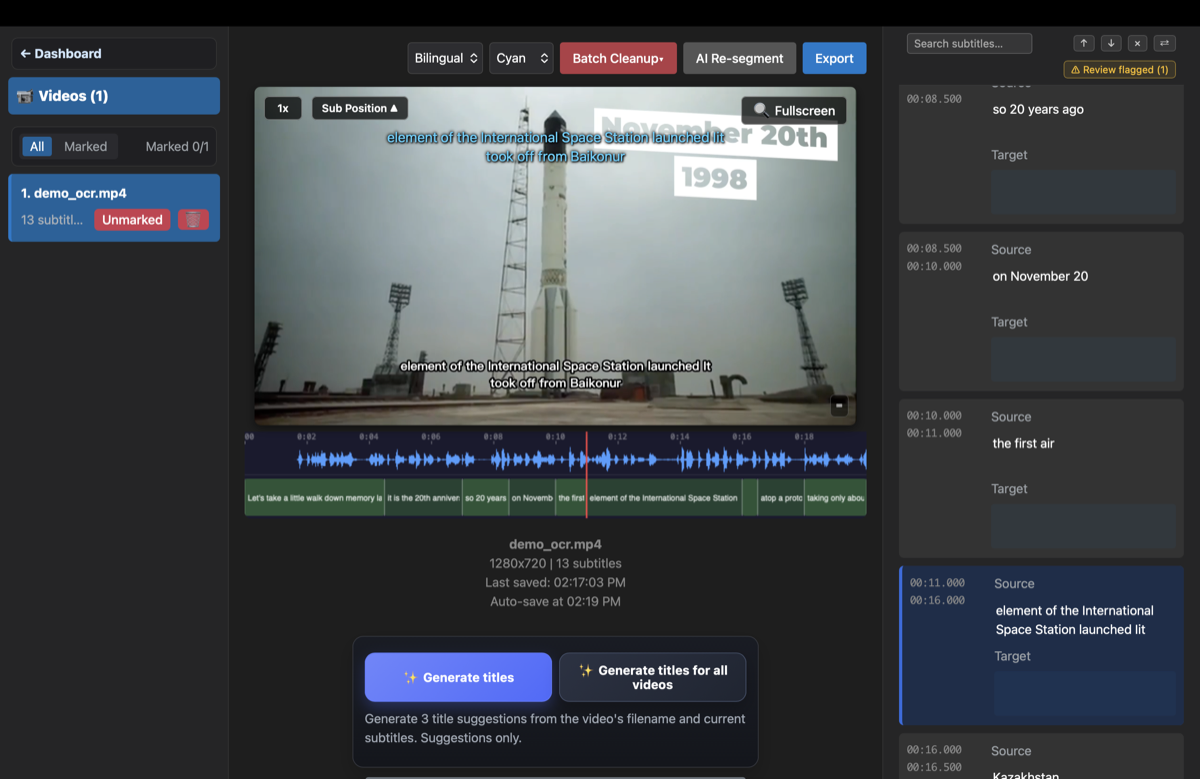
- Pick "Extract hardcoded subtitles (OCR)" and import the story video — GeekLink then detects the dialogue lines automatically and filters out most HUD, name plates, and menu text (the full mechanics, region handling, and format notes are in the OCR extraction guide).
- Export TXT — after a quick check of the lines it flags, export TXT for a clean reading document of the scenario, or add SRT if you also want the timing.
What can you do with the TXT?
The TXT is a plain reading document of the dialogue in order — the form that's easiest to reread, copy, annotate, and organize into a scenario reference.
- Read at your own pace — the whole scene as text, without scrubbing the video.
- Organize by scene or character — paste it into your notes and group lines however your reference is structured.
- Keep an archive — a small text file per chapter is easy to store and back up alongside the clips.
- Find a line fast — because it's plain text, you can also search it for a phrase when you need to locate a moment.
If you ever need to jump back to the exact moment in the video, export SRT too — it carries each line's timing.
Does it read Japanese game text?
Yes — GeekLink uses CJK models that read kanji and kana that generic OCR mangles, so Japanese game dialogue comes through as real editable text. The same applies to Chinese and Korean story text.
Game story captions are often set in decorative or boxed styles. Start from the highest-quality capture you have (720p+ reads far more cleanly), and the built-in editor flags the uncertain lines so you can fix a small handful against the frame they came from.
TXT or SRT for scenario reference?
For a reading and reference document, TXT is the right export — just the words, in order. Choose SRT only if you also want to jump back to the exact timestamp in the video.
- TXT — clean text for reading, notes, and archiving a scenario. This is what most reference use wants.
- SRT — the same lines with timestamps, useful if you want to re-locate a moment in the clip or line the text up against the video.
You can export both from the same extraction, so there's no need to choose up front. For a deeper comparison, see the SRT format explained.
Why use GeekLink for this?
- 100% local: OCR runs entirely on your computer — the video never gets uploaded to a cloud service.
- Reads on-screen story text: captures narration, name labels, and unvoiced lines that speech-to-text can't.
- CJK models: Japanese (kanji + kana), Chinese, and Korean story text, plus English and Latin scripts.
- Clean TXT export: a plain reading document, with SRT available if you want timing too.
- Batch chapters: import several story clips and process them together.
- Flags the lines worth checking: proofread a small handful instead of reading every line.
Frequently Asked Questions
Can I save a game's story dialogue as a text file?
Yes. If the dialogue is shown on screen as captions, GeekLink reads it off the frames with OCR and turns it into editable text you export as TXT — a clean reading document of the scenario. It runs locally on your computer, and you don't need the game's script files, just the video.
Should I use OCR or speech-to-text for game dialogue?
Use OCR when the dialogue is printed on screen — it captures exactly what's shown, including narration boxes, character-name labels, and lines that are never voiced. Use speech-to-text only for fully voiced scenes with no on-screen text. GeekLink does both, so you can switch per clip.
Does it read Japanese game text (kanji and kana)?
Yes. GeekLink uses CJK models that read kanji and kana that generic OCR mangles, so Japanese game dialogue comes through as real editable text. Chinese and Korean story text are supported too.
Should I export TXT or SRT for a scenario reference?
For a reading and reference document, TXT is best — just the dialogue in order. Export SRT as well only if you want each line's timestamp so you can jump back to the exact moment in the video. You can get both from the same extraction.
Can I process several story chapters at once?
Yes. Import multiple clips and GeekLink runs OCR on all of them as a batch, producing a separate text file for each — handy for archiving a full route or a series of story episodes.
Related Articles
Disclosure: GeekLink is our own product. OCR accuracy figures are typical ranges for clean 720p+ captions and vary with video quality. Game dialogue and story text may be protected by copyright — keep extracted text for personal reference and check the source's terms before republishing.