TL;DR: If your only copy of an old episode is the finished, exported video with the captions burned into the picture, you don't have to re-type the dialogue by hand. Pick "Extract hardcoded subtitles (OCR)" in GeekLink and import the video — its subtitle-line algorithm automatically finds the on-screen dialogue and turns it into a timestamped file — export it as SRT to keep the timing and as TXT to read and rewrite. It runs locally on your computer (free for Mac and Windows), handles whole batches of episodes, and works with Turkish, English, Chinese, Japanese, Korean and more.
This is the exact situation when you want to remake or continue a series but the original script is gone — the project files are lost, and all that survives is the published video. The words are still on screen; you just need to get them back into editable text.
"I only have the old video, not the script" — what now?
When the original script or editing project is gone, the finished video is still a complete record of the dialogue — every line is right there on screen. Recovering it is a reading problem, not a re-writing one.
This happens more than people admit. A creator finishes a series, exports each episode, and moves on. Years later they want to remake it, translate it, or continue the story — but the script document, the timeline project, and the separate subtitle files are all lost. What's left is the published video with the captions baked into the picture.
Those baked-in captions are called hardcoded (burned-in) subtitles. There's no hidden text track to export — the text is part of the image. To turn it back into words you can edit, you read it off the picture with OCR (Optical Character Recognition).
Why OCR, not re-typing or speech-to-text?
There are three ways to get an old script back. Which one fits depends on what's actually in the video.
- Re-typing by hand — accurate, but painfully slow for a multi-episode series, and you still have to guess the timing for each line.
- Speech-to-text (transcribing the audio) — good when the audio is clean, but many stylized series use text-to-speech, music beds, or dubbed voices that transcription mangles. It also can't recover on-screen text that was never spoken (narration cards, character names, sound-effect captions).
- OCR (reading the on-screen captions) — the right choice when the dialogue is already visible as burned-in text. It captures exactly what the audience read, including narration and labels, and it recovers the timing for free because it sees when each line appears and disappears.
If your old series has captions burned into the frame, OCR is the path that matches the source. (If some episodes have clean audio and no on-screen text, GeekLink also does speech recognition, so you can mix both.)
How do you recover the script, step by step?
The whole flow runs locally in GeekLink — the old video never leaves your computer. The short version for a recovery job:
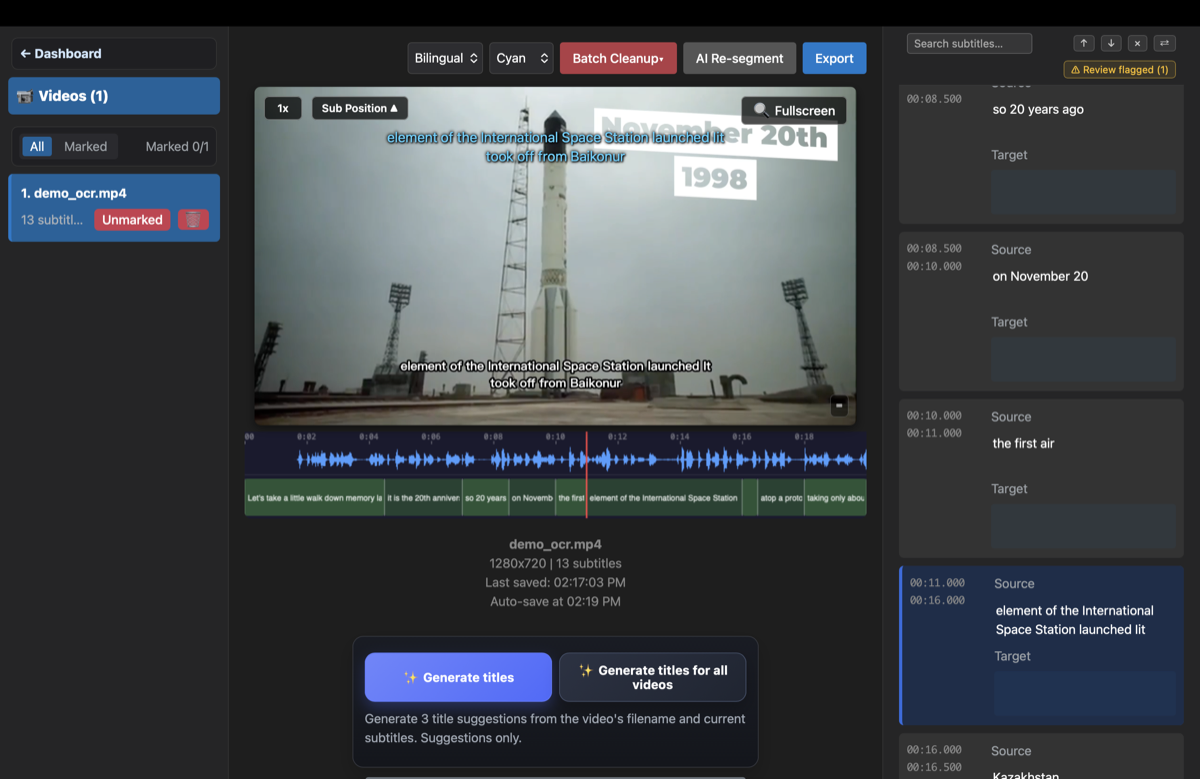
- Pick "Extract hardcoded subtitles (OCR)" and import the old episodes — GeekLink then detects the dialogue lines automatically and filters out most logos, watermarks, and title cards (the full mechanics, region handling, and supported formats are in the OCR extraction guide).
- Export SRT + TXT — after a quick check of the lines it flags, export SRT to keep the timing and TXT as the readable draft you rewrite for the remake.
Why keep both SRT and TXT for a remake?
Export SRT and TXT together: the SRT keeps the timing so you can jump back to any moment and re-align the remake, while the TXT is a clean, readable draft you can rewrite freely. They serve two different jobs in a rebuild.
- SRT — the timeline. Every line carries its in/out time, so you can scrub straight to a scene, match the pacing of the new version, or re-use the timings as the starting point for new subtitles.
- TXT — the reading draft. Just the words, in order — the easiest form for reworking dialogue, reordering scenes, tracking each character's lines, and searching the whole script for a phrase you want to change.
Most people rebuilding a series want both: the TXT to write the new story on top of the old one, and the SRT to stay anchored to what happened when.
How do you recover a whole series at once?
Import every episode in one go and GeekLink runs OCR on all of them in a batch, so you get the whole series back as separate scripts instead of processing one file at a time.
For a rebuild you usually want the full run of episodes, not a single clip. Add them together and let GeekLink detect the subtitle lines and work through the list — each episode comes out as its own timestamped script plus TXT, ready to read in order. A two-part story of around 40 minutes total, or a dozen short episodes, is a normal batch.
How do you clean up the recovered dialogue?
OCR gets you a near-complete script fast, and the built-in editor flags the lines it's unsure about so you only proofread a handful instead of re-reading every cue.
Recovery from an old export is rarely 100% perfect — stylized fonts, low-resolution uploads, and text over busy backgrounds can produce the odd misread. To get the cleanest recovery:
- Start from the highest-quality copy you still have — a 720p+ version reads far more cleanly than a heavily compressed re-upload.
- Let automatic line detection do the first pass so title cards, character-name labels, and effects are less likely to get mixed into the script.
- Use the review flags to check only the uncertain lines, then fix them against the frame shown right next to the text.
The result is a script that's editable, searchable, and time-aligned — a working base for the remake, not a finished screenplay you have to trust blindly.
Which languages does this work for?
OCR recovery works across scripts — Latin languages like Turkish, English, Spanish and Portuguese, plus Chinese, Japanese, and Korean — because if a person can read the caption on screen, OCR can usually read it too.
Stylized and fan-made series often use non-English dialogue with decorative fonts. GeekLink's CJK models read kanji, kana, and hanzi that generic OCR mangles, and Latin-script languages with accents and special characters (Turkish's ı/İ, ş, ğ, for example) come through as real editable text rather than lookalike substitutions.
Why use GeekLink for this?
- 100% local: OCR runs entirely on your computer — the old video never gets uploaded to a cloud service.
- SRT + TXT in one pass: keep the timeline and get a readable draft from the same extraction.
- Batch whole series: import every episode and recover them together.
- Automatic subtitle-line detection: find the dialogue rows without manually drawing a region box.
- Flags the lines worth checking: proofread a small handful instead of reading every cue.
- Multi-script: Turkish and other Latin languages, plus Chinese, Japanese, and Korean.
Frequently Asked Questions
I only have the finished, exported video and no script file — can I get the dialogue back?
Yes. You don't need the original editing project or a separate subtitle file — just the exported video. If the dialogue is on screen as burned-in captions, GeekLink reads it back frame by frame into an editable, timestamped script, entirely on your computer. Export it as SRT (with timing) and TXT (plain text) to work from.
Should I use OCR or speech-to-text to recover an old script?
Use OCR when the dialogue is already visible as burned-in text on screen — it captures exactly what the audience read, including narration and on-screen labels, and recovers the timing automatically. Use speech-to-text when the audio is clean but there's no on-screen text. GeekLink does both, so you can mix them across episodes.
Why export both SRT and TXT?
SRT keeps each line's in/out timing, so you can jump back to any moment and re-align a remake or reuse the timings for new subtitles. TXT is just the words in order — the easiest form for rewriting dialogue, reordering scenes, tracking characters, and searching the whole script. For a rebuild, both are useful.
Can I recover a whole series in one go?
Yes. Import every episode at once and GeekLink runs OCR on all of them as a batch, producing a separate timestamped script and TXT for each — so you get the full series back instead of processing files one at a time.
Does this work for non-English dialogue?
Yes. OCR recovery works across scripts — Turkish, English, Spanish, Portuguese and other Latin languages, plus Chinese, Japanese, and Korean. Accented and special characters come through as real editable text, not lookalike substitutions.
Related Articles
Disclosure: GeekLink is our own product. OCR accuracy figures are typical ranges for clean 720p+ captions and vary with video quality. Recovering dialogue from video you don't own the rights to may be restricted — check the source's terms before republishing.