TL;DR: Hardcoded (burned-in) subtitles are part of the video image, so getting editable text back means OCR — and what really separates the tools is how much setup they need and what happens after the SRT. On Mac or Windows, GeekLink is the best overall pick: it finds the subtitle lines automatically, keeps logos and watermarks out, reads each line locally with no Python or GPU setup, and flags the few lines it's unsure about — so you get a clean SRT with little cleanup. Translation and burn-in are there if you ever need them. The open-source extractors (VSE, VideOCR, VideoSubFinder + RapidVideOCR) mainly suit Linux users and technical users with an NVIDIA GPU who only need a raw SRT. Below: all 8 options, including three OCR engines, compared in one table.
Key takeaways
- GeekLink gives the cleanest SRT for the least work. Automatic subtitle-line detection (no manual cropping), logo and watermark filtering, per-line language models for two-line and bilingual subtitles, and flagged uncertain lines — with no Python, conda, or CUDA.
- If you need more than the SRT, only GeekLink keeps going — AI translation and burn-in are optional steps in the same app.
- The open-source extractors are built for technical users. VSE and VideOCR lean on NVIDIA GPUs and are slow on CPU; VideOCR and VideoSubFinder have no Mac build.
- VideoSubFinder doesn't OCR by itself. It needs a second program (RapidVideOCR or Subtitle Edit) for the actual text — two apps, with image batches in between.
- PaddleOCR, Tesseract, and Google Lens are engines, not tools. They read single images; frame detection, timing, and de-duplication are what a subtitle tool adds on top.
Want an all-in-one desktop workflow? GeekLink finds the subtitle lines automatically, extracts them locally on Mac and Windows, and exports a timestamped SRT. Free tier, no account required.
Download FreePart 1: Dedicated subtitle extraction tools
These five are purpose-built for pulling hardcoded (burned-in) subtitles out of video. They differ mainly in platform, how many steps the workflow takes, and what happens after you have the SRT.
1. GeekLink — Best overall: the cleanest extraction with the least manual work (Mac and Windows)
Price: Free tier (OCR extraction included); Pro $12.99/mo, $99/yr (~$8.25/mo), or $129 one-time lifetime
Platform: Mac (Apple Silicon) and 64-bit Windows
GeekLink gets you a clean, usable SRT with less manual work than any other tool on this list — and it's the only one with a native Mac app. Import the video and GeekLink finds the subtitle lines automatically, so there's no cropping by hand, and it keeps logos, watermarks, and other on-screen text out of the subtitle list. Two-line and bilingual subtitles are handled line by line: you pick the language for each line, and each one is read with its matching model, so a Chinese line and an English line in the same frame both come out right. OCR runs locally, and the editor flags the few lines it's least sure about, so you check a handful instead of proofreading the whole file. If the automatic detection doesn't fit an unusual layout, you can draw the subtitle box yourself.
For most people the job ends there: export the SRT and you're done. If you need more, the same app can also translate (Claude 3.5 Haiku, GPT-4o, GPT-4o mini, DeepSeek — context-aware, 40+ languages) and burn subtitles back into the video.
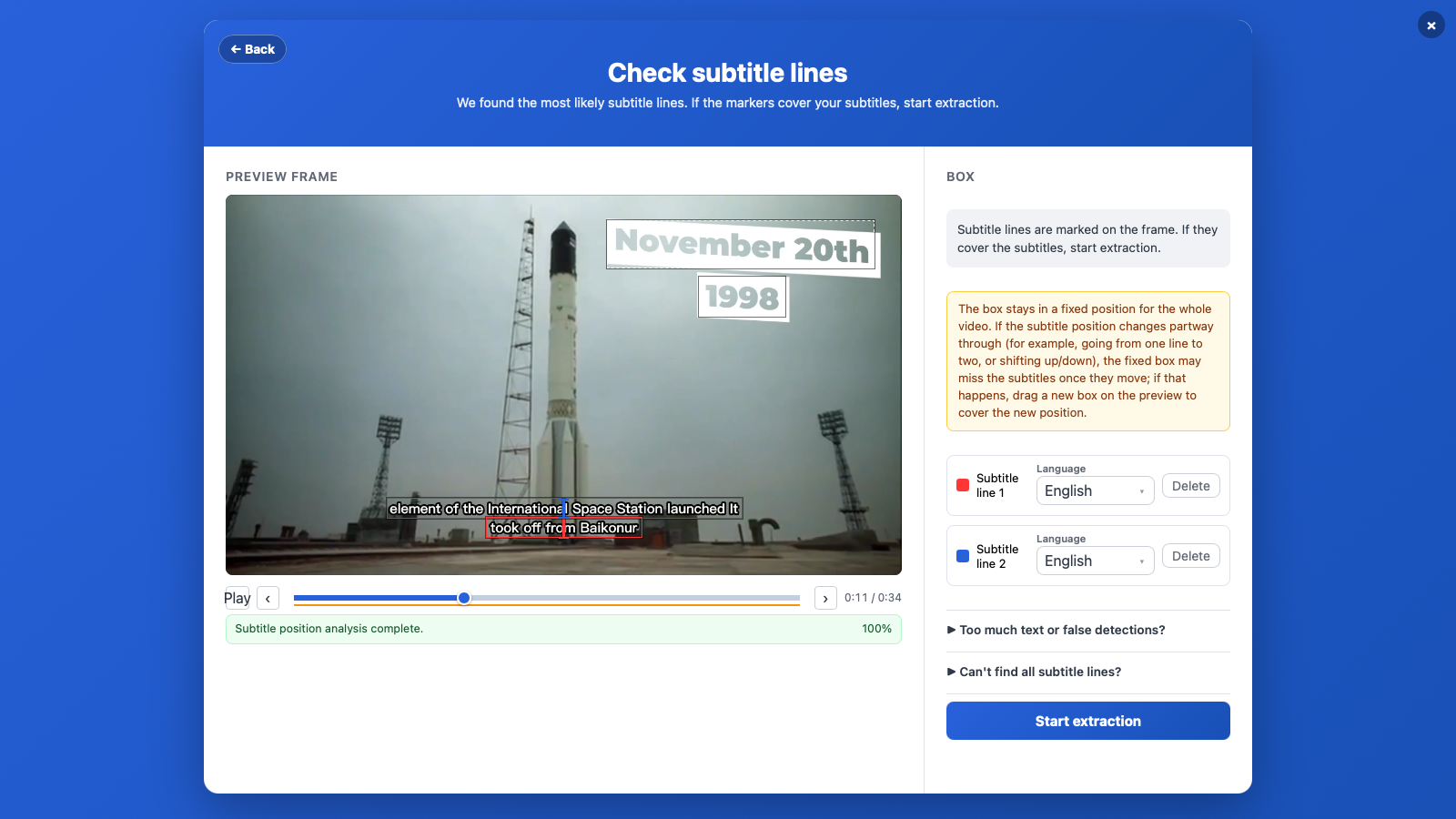
What stands out:
- Finds subtitle lines automatically — no manual cropping — and keeps logos, watermarks, and on-screen text out of the SRT
- Handles two-line and mixed-language subtitles, with the right recognition model for each line
- Flags uncertain lines, so you review a handful instead of the whole file
- Native Mac app plus a Windows build — no Python, conda, or NVIDIA GPU; OCR runs 100% locally; batch processing built in
- Optional extras in the same app: AI translation and styled burn-in
Limitations:
- Desktop app for Mac and Windows; no Linux version or web workspace
- Closed source; AI translation is a paid (Pro) feature — extraction itself is on the free tier
Best for: Anyone who wants an accurate SRT from burned-in subtitles without setup — especially on a Mac. If you later need translation or burn-in, it's already there. Step-by-step guide: How to Extract Hardcoded Subtitles with OCR.
2. Video-Subtitle-Extractor (VSE) — Open-source extractor tuned for NVIDIA GPUs
Price: Free, open source (Apache 2.0)
Platform: Windows, Linux, macOS (tuned for NVIDIA GPU; CPU fallback is slow)
Video-Subtitle-Extractor is a widely used open-source extractor that pulls burned-in subtitles into SRT with local OCR in many languages. It detects the subtitle region frame by frame, de-duplicates repeated lines, and offers Fast/Auto/Precise modes. Especially strong in the Chinese-speaking community.
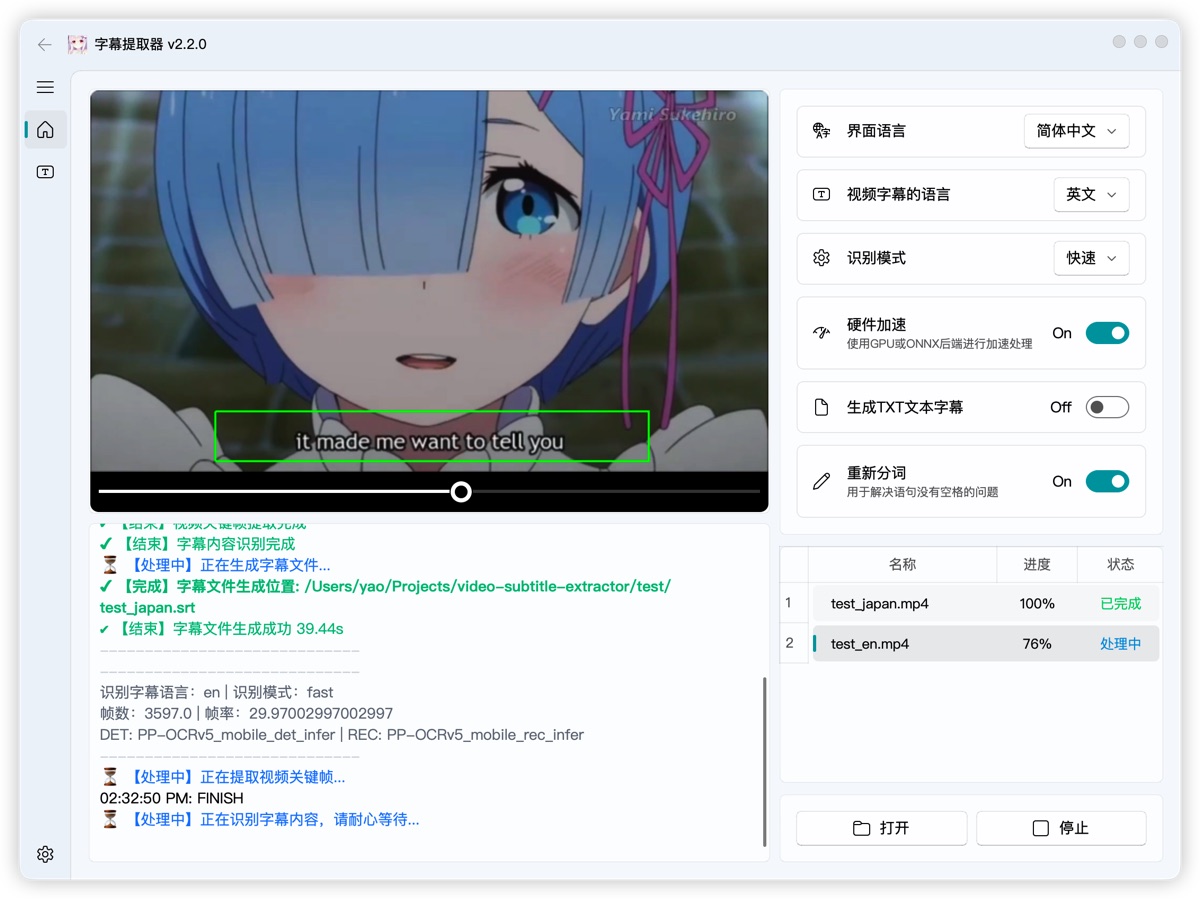
What stands out:
- Many languages, fully local, no API keys
- Batch extraction across multiple videos (same resolution/region)
- Sister project (video-subtitle-remover) can erase the old burned-in text
Limitations:
- NVIDIA/CUDA-oriented — on a Mac it falls back to slow CPU processing
- Python/conda setup if the release build doesn't work for you; paths can't contain spaces or non-ASCII characters
- No in-app editor, translation, or burn-in
Best for: Technical users with an NVIDIA GPU who want free bulk extraction, especially for Chinese content. Full comparison: GeekLink vs VSE.
3. VideOCR — Free one-step extractor for Windows and Linux
Price: Free, open source (MIT)
Platform: Windows, Linux, Docker (CPU & NVIDIA GPU builds)
VideOCR is the simplest free way to go from a video with burned-in subtitles to a finished SRT in one program. Load the video, crop the subtitle area, run — it reads the text with PaddleOCR locally, or with Google Lens in a hybrid cloud mode, and writes a timestamped SRT.
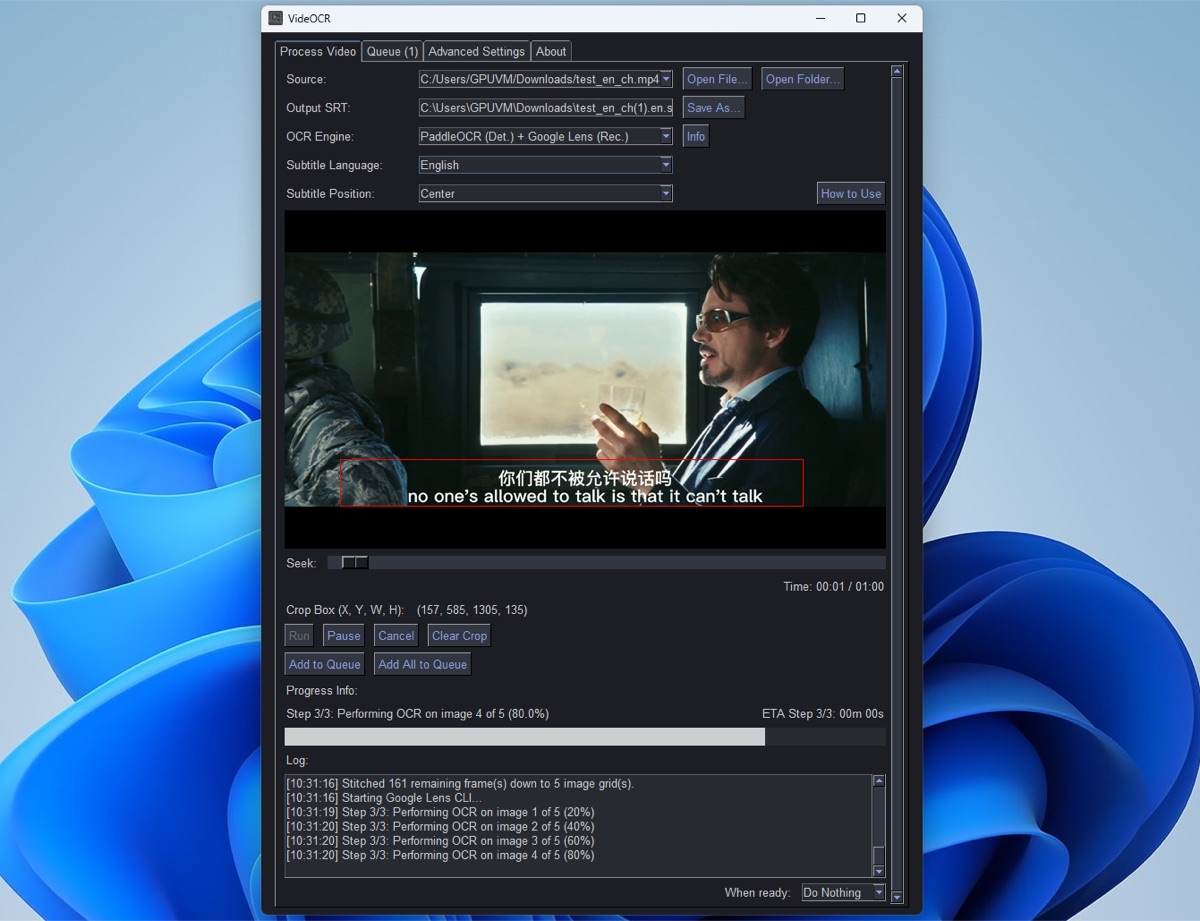
What stands out:
- True one-step workflow: video in, SRT out
- Local PaddleOCR mode (many languages) or higher-accuracy Google Lens hybrid mode
- GUI and CLI, plus Docker images; NVIDIA CUDA acceleration
Limitations:
- No macOS build
- Slow on CPU by its own documentation — you really want the GPU build
- No editor to review results, no translation, no burn-in
Best for: Windows/Linux users who want free, no-fuss extraction and are done once they have the SRT.
4. VideoSubFinder — Frame detection for a two-step workflow (no OCR of its own)
Price: Free, open source (GPLv2)
Platform: Windows, Linux
VideoSubFinder doesn't do OCR at all — it solves the video half of the problem better than anyone: finding the frames with subtitle text, recording exact timing, and outputting cleaned images with the background stripped away. You then run those images through an OCR tool (RapidVideOCR, Subtitle Edit, FineReader) to get the text. A fansubbing classic.
What stands out:
- Excellent background cleaning — hands your OCR tool much easier images
- Precise appear/disappear timing per line
- Every stage is inspectable and tunable
Limitations:
- No OCR of its own — a second program is required
- No macOS build
- The most manual workflow here: two apps, image batches in between
Best for: Fansubbers and perfectionists who want maximum control and the best possible raw images for OCR.
5. RapidVideOCR — The OCR step for VideoSubFinder output
Price: Free, open source (Apache 2.0)
Platform: Windows, Linux, macOS (Python/pip; desktop EXE for Windows)
RapidVideOCR is the purpose-built second half of the VideoSubFinder workflow: it takes VideoSubFinder's cleaned image folders (RGBImages/TXTImages) and OCRs them into SRT, ASS, or TXT. It's built on the RapidOCR engine and actively maintained.
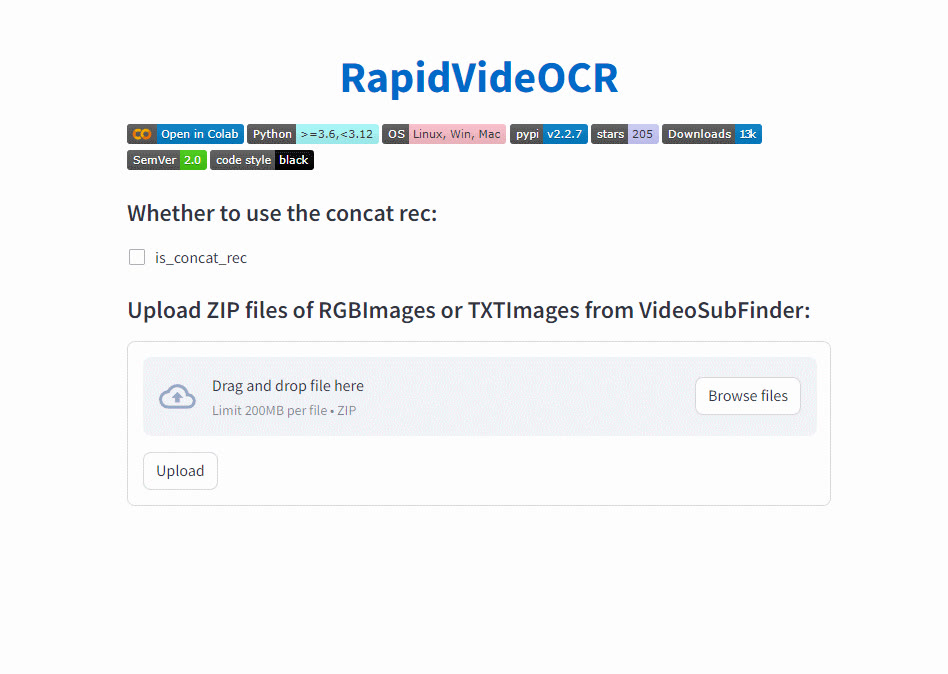
What stands out:
- Designed specifically for VideoSubFinder output — timing comes through cleanly
- SRT, ASS, and TXT output
- pip-installable, works cross-platform
Limitations:
- Not a standalone extractor — useless without VideoSubFinder's images (and VideoSubFinder itself has no Mac build, so the pair is still Windows/Linux-bound)
- CLI-first; the friendlier desktop version is Windows-only
Best for: Completing the VideoSubFinder pipeline without ABBYY FineReader or manual Subtitle Edit OCR passes.
Part 2: OCR engines (not complete tools)
You'll also see these three recommended. They read text from single images; none of them finds subtitle frames, removes duplicates, or builds timestamps, so on their own they don't produce an SRT.
6. PaddleOCR
A deep-learning OCR toolkit, strong on Chinese and other CJK text, and the engine inside VideOCR's local mode. Using it on video means writing your own frame-extraction, de-duplication, and timing code.
7. Tesseract OCR
The veteran open-source engine, designed for printed documents. Low-resolution, stylized video text is a hard target for it unless the frames are cleaned first (which is what VideoSubFinder does).
8. Google Lens
Accurate on messy frames, but manual — one screenshot at a time, with no timing. VideOCR's hybrid mode automates it at the cost of sending your frames to Google.
How do all 8 options compare?
| Tool | Platform | Does its own OCR | Steps to SRT | Translation / burn-in | Price |
|---|---|---|---|---|---|
| GeekLink | Mac (Apple Silicon) and 64-bit Windows | Yes (local) | 1 | Yes — AI translation + styled burn-in | Free tier; Pro $12.99/mo, $99/yr, $129 lifetime |
| Video-Subtitle-Extractor | Win / Linux / macOS (NVIDIA-tuned) | Yes (local) | 1 | No | Free (Apache 2.0) |
| VideOCR | Windows / Linux / Docker | Yes (PaddleOCR or Google Lens) | 1 | No | Free (MIT) |
| VideoSubFinder | Windows / Linux | No — images only | 2 (needs OCR tool) | No | Free (GPLv2) |
| RapidVideOCR | Win / Linux / macOS (pip) | Yes (RapidOCR) — on VideoSubFinder images | 2 (with VideoSubFinder) | No | Free (Apache 2.0) |
| PaddleOCR | Python library | Engine only | DIY scripting | No | Free |
| Tesseract | Library / CLI | Engine only | DIY / via Subtitle Edit | No | Free |
| Google Lens | Cloud | Engine only (cloud) | Manual / via VideOCR hybrid | No | Free |
Which should you choose?
You just want the subtitles out, accurately, on Mac or Windows: GeekLink. Import the video, confirm the subtitle lines it finds, and export the SRT — no cropping, Python, conda, or NVIDIA GPU, and logos and watermarks stay out of the file. Extraction and 60 minutes of OCR export a month are on the free tier.
You also need translation or burn-in: if the subtitles need to be reviewed, translated, and burned back into a finished video, GeekLink is the only tool here that does all of it in one app — everything else hands you an SRT and stops there.
You're on Linux, or you're comfortable with Python and have an NVIDIA GPU: the open-source extractors (VideOCR, VSE) or the two-step VideoSubFinder + RapidVideOCR route can work, with more setup and no editor, translation, or burn-in afterward.
Frequently Asked Questions
What is the best free tool to extract hardcoded subtitles?
On Mac or Windows: GeekLink's free tier covers automatic subtitle-line detection, local OCR extraction, and 60 minutes of OCR export a month, with no Python or GPU setup. On Linux, the open-source options (VideOCR, or VideoSubFinder + RapidVideOCR) are free but need more setup and stop at the raw SRT.
How do I extract hardcoded subtitles on a Mac?
GeekLink is the desktop option in this list with both Mac and Windows builds. The open-source extractors focus on Windows/Linux (VideoSubFinder, VideOCR) or require more setup (Video-Subtitle-Extractor). GeekLink runs OCR locally: import, review the subtitle lines it detects automatically, run, and export SRT.
Do I need a GPU to extract hardcoded subtitles?
For the open-source extractors, effectively yes for reasonable speed — VideOCR and Video-Subtitle-Extractor are both built around NVIDIA CUDA and are slow on CPU. On a Mac, GeekLink runs its OCR natively on recent desktop hardware without a discrete GPU.
Can any of these tools translate the extracted subtitles?
Only GeekLink. The others stop at the original-language SRT (or images). GeekLink translates in-app with Claude 3.5 Haiku, GPT-4o, GPT-4o mini, or DeepSeek, using context across lines, and can burn the translated subtitles back into the video.
Should I use VideoSubFinder or VideOCR?
Both are Windows/Linux only. VideOCR detects and OCRs in one run; VideoSubFinder only produces cleaned text images and timing, so you need a second OCR tool such as RapidVideOCR. If you're on a Mac, or you want to review, translate, or burn in the result afterward, GeekLink covers the whole workflow in one app.
Why not just use Google Lens or Tesseract directly?
They're OCR engines, not video tools — they read single images. Extracting subtitles from video also requires finding which frames contain text, de-duplicating lines across frames, and building timestamps. That video layer is exactly what VideOCR, VSE, VideoSubFinder, and GeekLink provide on top of an engine.