TL;DR: Subtitle Edit is free, open-source, and now runs on Mac as well as Windows. The features that save the most time on subtitle QC are mostly hidden in menus: bookmarks to jump only to the lines that need attention, Multiple Replace to fix a recurring name in one pass, the move-text shortcuts to fix cue boundaries, Batch Convert to clean up the mechanical mess before you start, Beautify Time Codes for timing, and the CPS column to find unreadable lines. The last trick is to stop reading the whole transcript at all — let a tool flag the risky lines and hand them to Subtitle Edit as bookmarks.
Subtitle Edit (SE) is the tool a lot of us reach for to clean up subtitles. After doing a lot of this, here are the tricks that save me the most time — most of them are buried in menus people never open.
1. Bookmarks: jump only to the lines that need you
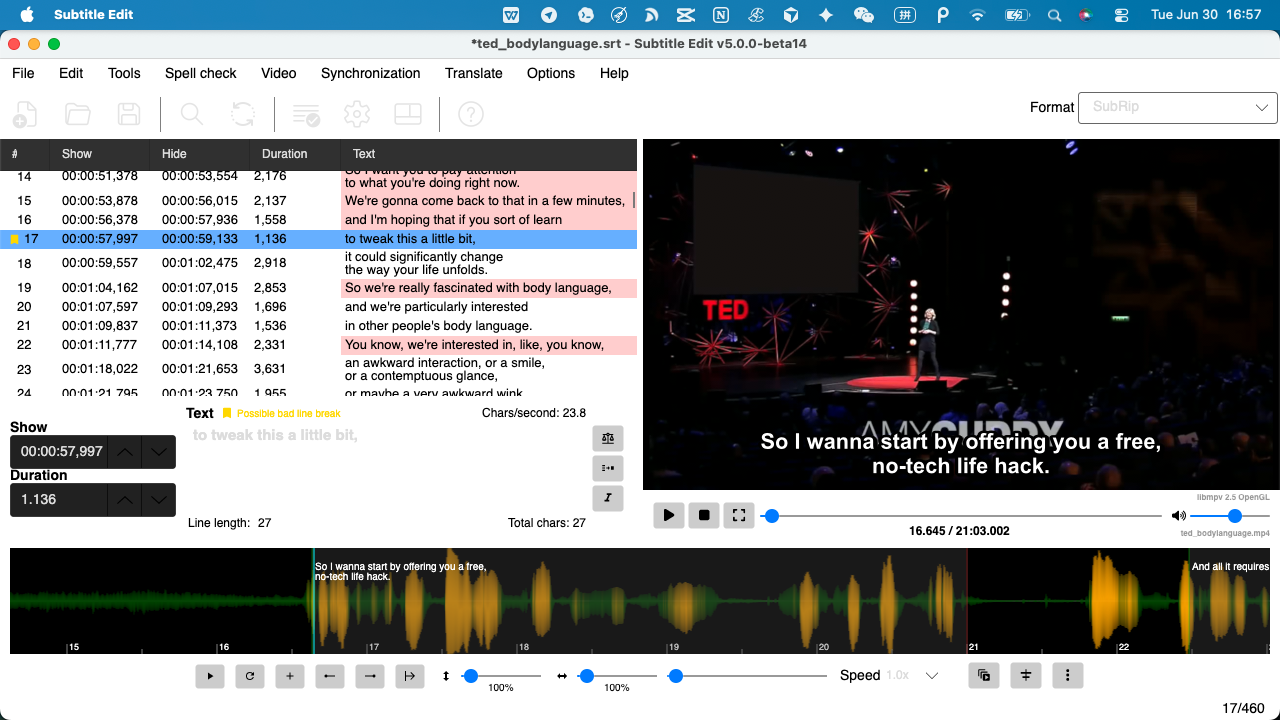
Instead of scrolling top to bottom, bookmark the lines worth checking and jump straight between them. On a long video, that turns "read all 800 lines" into "visit the 30 that matter." The real win is getting those bookmarks placed for you rather than adding them by hand — more on that in the last tip.
2. Fix a recurring name once with Multiple Replace
A misheard proper noun — say "Niamh" coming out as "Neve" — shows up in every episode. Don't fix it line by line. Open Tools → Multiple Replace, add one rule, and it's corrected across the whole file at once. Better still, save the rule list and reuse it on the next episode of the series, so the same names never cost you twice.
3. Move words between cues with shortcuts (not copy-paste)
The single biggest time-sink is the cue that breaks one word short, or one word long. Subtitle Edit has shortcuts to move text to the next or previous subtitle — they shift the stray word and keep everything else, far faster than cut, paste, and re-time. Set those two shortcuts to keys you'll remember and you'll feel the difference immediately.
4. Run Batch Convert before you edit anything
Before any manual work, run Tools → Batch Convert with "Fix common errors", "Auto-balance lines", "Merge short lines", and "Apply minimum gap between subtitles". That clears most of the mechanical mess automatically, so your manual pass starts from a clean base instead of raw output. You can run it across a whole folder of files at once, too.
5. Fix timing in one pass with Beautify Time Codes
Beautify Time Codes evens out gaps and durations across the whole file, and if you point it at the video it can pull real frame timing. One pass fixes a lot of the "feels slightly off" timing without hand-dragging every cue. It pairs well with snapping cues to shot changes when you have the video loaded.
6. Find unreadable cues with the CPS column
Turn on the characters-per-second (CPS) column and sort by it. Anything well over ~17 CPS for Latin scripts (lower for CJK) is too fast to read no matter how you break the line — those are the cues to shorten or hold longer. Sorting by CPS surfaces them instantly instead of catching them by eye during playback.
7. Let a tool flag the risky lines for you
Tricks 1–6 all assume you already know which lines to check. That's the part worth automating: a tool that flags the low-confidence words and the segments where music or effects may be covering the speech, then exports them as Subtitle Edit bookmarks — so "jump only to the lines that need you" (trick #1) happens without reading the whole transcript first.
That's exactly what we built into GeekLink on Mac: it recognizes the audio, flags the shaky lines, and exports an SE review pack — an SRT plus bookmarks plus the video — that opens straight in Subtitle Edit. You review a shortlist instead of the whole file, then use tricks 1–6 to fix it.
FAQ
Is Subtitle Edit free?
Yes. Subtitle Edit is free and open source, and it now runs on Mac as well as Windows. None of the tricks here require a paid tool.
Does Subtitle Edit run on Mac?
Yes. Subtitle Edit now has a Mac build, so the bookmarks, Multiple Replace, Batch Convert, and timing features all work on macOS, not just Windows.
What is the fastest way to QC subtitles?
Don't read every line. Run Batch Convert to clear the mechanical issues, fix recurring names once with Multiple Replace, then review only the risky lines — ideally the ones a tool has already flagged as low-confidence — by jumping through bookmarks instead of scrolling the whole file.
How do I replace a name across a whole subtitle file?
Use Subtitle Edit's Multiple Replace, in the Tools menu. Add a rule for the misspelling and its correct form, and it is applied across the entire file in one pass. Save the rule list to reuse it on the next episode of a series.
Can Subtitle Edit load bookmarks automatically?
Yes. If a .SE.bookmarks file shares the same name as your .srt in the same folder, Subtitle Edit loads the bookmarks when you open the subtitle. GeekLink's review pack exports the SRT, bookmarks, and video together so they open in one click.
Disclosure: GeekLink is our own desktop app, and the review-pack export in trick #7 is a GeekLink feature. Tricks 1–6 are just Subtitle Edit — an independent, free, open-source tool we export to, not affiliated with us — and they're worth learning whatever you pair them with.