TL;DR: To subtitle a K-pop video your fandom hasn't covered yet, you don't type every line by hand. If the clip has Korean audio and no subs, transcribe the speech to a timed subtitle track, then AI-translate it to English. If the Korean subtitles are burned into the picture, OCR them into an editable track first, then translate. Either way you get an editable English SRT you can tidy up and export or burn in. GeekLink does the transcribe / OCR / translate steps on Mac, locally and free — which is the part Aegisub and Subtitle Edit make you do by hand.
A lot of K-pop content — idol lives, music-show stages, fancams, variety clips, concert footage, news and commentary — never gets an official English sub, or the fandom's translators are backed up for days. If you understand some Korean (or just want to help), you can sub it yourself. Here's the fast way.
First: do you want to make subs, or just watch?
If you only want to watch and understand the video, you don't need a subtitling tool — turn on your player's auto-translated captions (they're much better with AI now), or wait for your fandom's fan-translation team. This guide is for the other case: you want to produce an English subtitle file for a clip that doesn't have one.
If the video has Korean audio and no subtitles
This is the common case for lives, vlogs, and interviews. The workflow:
- Transcribe the Korean speech. Import the video into GeekLink and run speech recognition — it turns the spoken Korean into a timed subtitle track, on-device (based on Whisper). No typing, no manual timing.
- Translate to English. Run AI translation on the Korean track to get an English one — keep it bilingual (Korean + English) if you want.
- Fix and export. GeekLink flags the lines it's unsure about, so you polish a handful instead of re-timing everything, then export an SRT or burn the subs into the video.
If the Korean subtitles are burned into the picture
Some clips (variety re-uploads, fan edits) already have Korean captions, but they're hardcoded — painted into the video, with no file to grab. In that case:
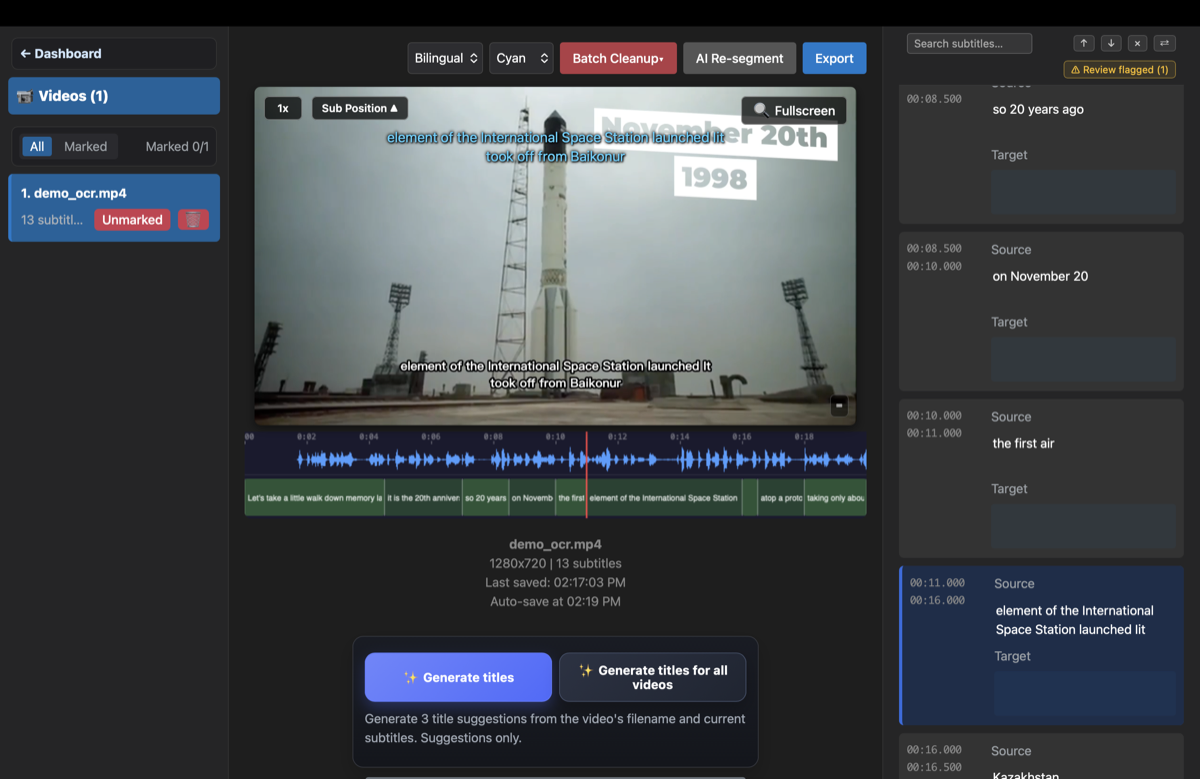
- OCR the burned-in Korean subtitles. GeekLink scans the video, detects the likely Korean subtitle lines automatically, and reads the confirmed rows into an editable, time-synced track.
- Translate to English and export, same as above.
Why not just Aegisub or Subtitle Edit?
When people ask "what software do I use to sub K-pop content?", the usual answers are Aegisub and Subtitle Edit. They're excellent editors — but they expect you to already have the text and timings. You still have to listen and type every line, time it by hand, and translate it yourself.
GeekLink does those slow parts for you: it transcribes the Korean audio (or OCRs the burned-in subs) and translates to English automatically, then hands you an editable track to refine. You spend your time checking and polishing, not typing from scratch — and it's all local and free.
Frequently Asked Questions
What software do I use to subtitle K-pop content?
Aegisub and Subtitle Edit are the classic editors, but they make you transcribe, time, and translate by hand. GeekLink automates the transcribe / OCR / translate steps and gives you an editable English track to polish — on Mac, free.
Do I need to know Korean to sub a video?
It helps for the final polish, but you don't start from a blank page: GeekLink transcribes the Korean and AI-translates it to English for you. You review and fix the lines that matter, rather than translating every sentence yourself.
How do I add English subtitles to a Korean video that has none?
Transcribe the Korean audio into a timed track (speech recognition), then AI-translate that track to English, then export an SRT or burn the subtitles into the video. GeekLink does all three steps in one app.
The Korean subtitles are stuck in the video — can I still get them?
Yes. If the captions are burned into the picture (hardcoded), GeekLink detects the likely Korean subtitle lines automatically and reads the confirmed rows into an editable track, then you translate to English. If the video's layout is not a good fit for automatic detection, you can add the subtitle boxes manually.
Is it free? Is it on the Mac App Store?
Speech recognition, OCR extraction, editing, and SRT export are free, with 60 minutes of OCR export every month. GeekLink is a direct download from geeklink.dev — not the Mac App Store — and no account is required. AI translation engines are a Pro feature.
Related Articles
Disclosure: GeekLink is our own product, built for transcribing, OCR, and translating subtitles on Mac. GeekLink creates the subtitle file; what you do with it — personal study, non-profit fan translation — is up to you and subject to each platform's rules on re-uploading copyrighted content.