1. Dashboard Buttons
Import files, switch task type, and start OCR / translation / speech tasks.
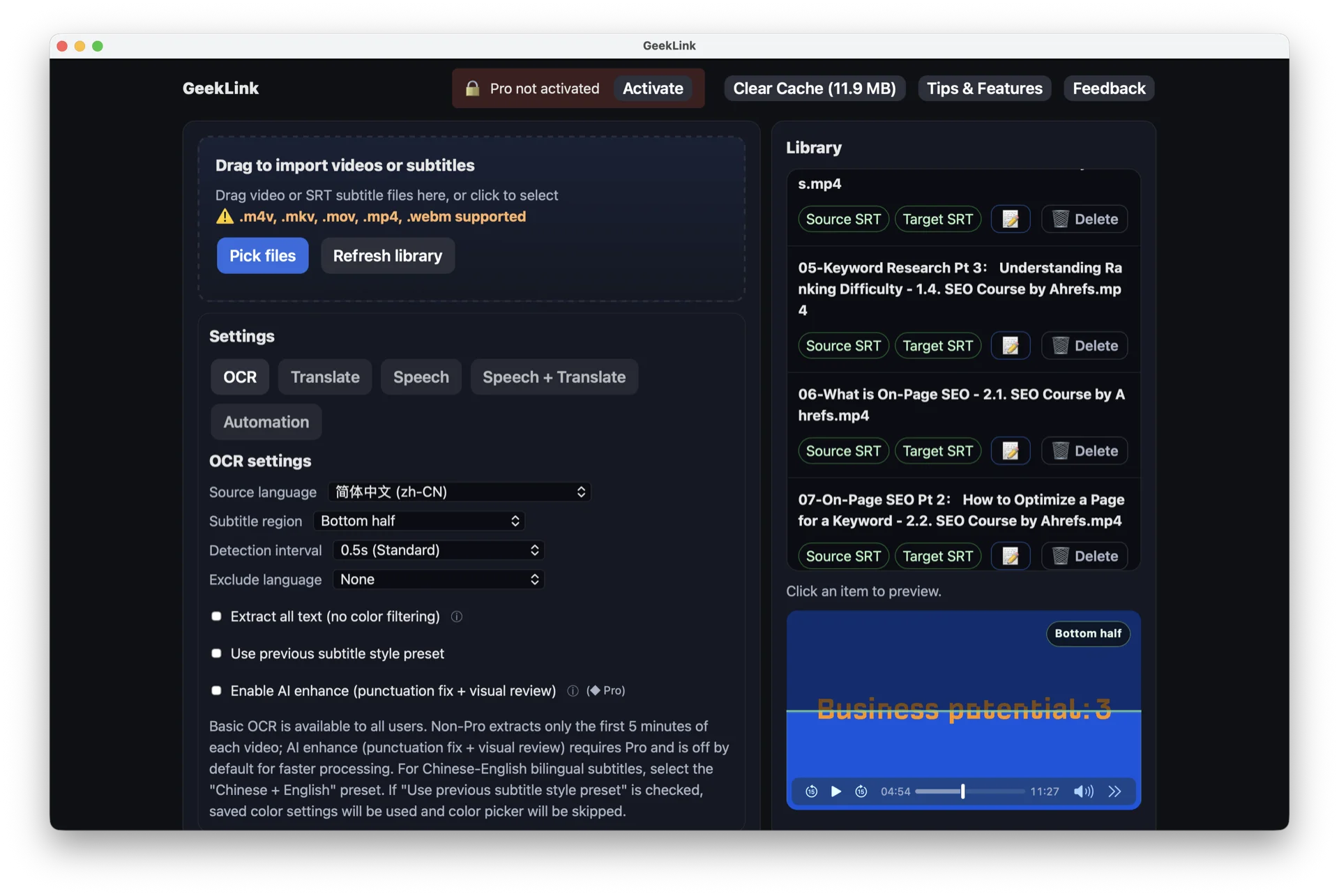
| Button | Location | Action | Availability | Notes |
|---|---|---|---|---|
| 📥 Select Files | Import area | Open file picker for videos/SRT. | Always | Only supported formats are accepted. |
| 🔄 Refresh Library | Import area | Reload local library list. | Always | Useful right after import. |
| ▶ Load Demo Video | Library empty state | Copy the built-in demo video into the library for a quick first-time experience. | Only when library is empty | Button disappears after loading; a demo entry appears in the library. |
| OCR / Translate / Speech / Speech + Translate / Automation Tabs | Settings card | Switch task mode and corresponding settings. | Always | Switching tabs does not start a task. |
| Run (current tab task) | Task button row | Start the workflow of the active tab. | Visible in selected tab | Disabled while running, auto-restored when done. |
| New Features & Tips | Top-right | Open the GeekLink website in the system browser. | Always | Shows a confirmation dialog before navigating. |
| Clear Cache | Top-right | Clear local cache files. | Always | Button shows current cache size. |
| Feedback | Top-right | Open feedback modal and export logs. | Always | Requires privacy confirmation checkbox. |
| Activate | Top-right activation area | Open activation modal. | When activation button is shown | Unlocks Pro features after success. |
| Check Update | Near version text | Check for latest version. | Always | Opens update modal if available. |
Settings Tabs Breakdown (4 Items)
| Setting Tab | Best For | What happens after clicking Run | Main Output | Notes |
|---|---|---|---|---|
| OCR | Video already has visible subtitles (hard subtitles) and you need editable subtitle files. | Extract subtitle text via OCR and generate source-language subtitle files. | Source-language subtitle (SRT) | ◆ Pro feature. If subtitle color is complex, use Color Picker first for better OCR stability. |
| Translate | You already have source subtitle files and only need target-language translation. | Read existing subtitles and translate line by line with the selected engine. | Target-language subtitle (SRT) | Pro engines may open the Pro modal. |
| Speech | No usable subtitle track is available; you need subtitles from audio. | Run speech recognition and create source-language subtitles. | Source-language subtitle (SRT) | First run with a new model may include model download time. |
| Speech + Translate | You want one pass for transcription and translation. | Run speech recognition first, then translate to target language automatically. | Source subtitle + target subtitle | Two modes are available: Standard mode for full output, Quick View mode for fast preview and proofreading. |
4 Tabs: Controls and Limits (UI-level Details)
A. OCR
| UI Control (Label) | What it does | Limits / Defaults | Notes |
|---|---|---|---|
| Source Language (dropdown) | Select OCR recognition language. | Limited to supported OCR language list. | Available in Pro only. Task will not start if the language is unsupported. |
| Subtitle Region (dropdown) | Limit OCR scan area. | Options: Bottom half / Bottom 20% / Top half / Full screen. | Helps reduce false positives and can speed up recognition. |
| Detection Interval (dropdown) | Control frame sampling frequency. | Options: 0.25s / 0.3s / 0.5s (default) / 1.0s. | Smaller interval is finer but slower. |
| Exclude Language (dropdown) | Ignore specific scripts/languages during OCR. | Options: None / Thai / Japanese / Korean / Chinese / Arabic. | Useful for mixed-language frames. |
| Extract all text, no color filter (checkbox) | Skip color filtering and extract all on-screen text. | When checked, the Color Picker is skipped entirely. | Mutually exclusive with Use previous style preset; useful when subtitle color varies or has no dominant color. |
| Use previous subtitle style preset (checkbox) | Reuse saved subtitle style/color settings. | If checked, Color Picker step can be skipped. | Good for batch videos in same style. |
| AI Enhance (punctuation + visual review) (checkbox) | Improve OCR text quality. | ◆ Pro feature. | Shows Pro prompt when not activated. |
| Run OCR | Start OCR task. | ◆ Pro feature. Disabled while task is running. | Shows a Pro prompt when not activated, then auto-enables after completion. |
B. Translate
| UI Control (Label) | What it does | Limits / Defaults | Notes |
|---|---|---|---|
| Source Language (dropdown) | Set subtitle input language. | Loaded from current settings. | Used with target language as translation direction. |
| Target Language (dropdown) | Set subtitle output language. | Loaded from current settings. | A confirmation dialog is shown before run. |
| Engine (dropdown) | Choose translation engine. | Options: ◆ DeepSeek / Google Translate. | DeepSeek is Pro-related capability. |
| Custom translation instruction (textarea) | Add terminology/style requirements. | UI counter: 0 / 50,000. | Tasks cannot start above 50,000 characters. |
| Run Translate | Start subtitle translation task. | Disabled while task is running. | If Pro engine is selected without activation, Pro prompt appears first. |
C. Speech
| UI Control (Label) | What it does | Limits / Defaults | Notes |
|---|---|---|---|
| Whisper Model (dropdown) | Choose recognition speed/accuracy profile. | Options: Tiny / Base / Small (default) / Medium / Large. | Download hint appears when selected model is not downloaded yet. |
| Recognition Language (dropdown) | Set speech recognition source language. | Loaded from current settings. | Language confirmation dialog is shown before run. |
| Original subtitle char limit + ⓘ | Cap max chars per recognized subtitle line. | Input range 10~200; empty = no limit. | Click ⓘ to view counting rule. If empty, system default splitting strategy is used. |
| AI punctuation fix (checkbox) + ⓘ | Fix punctuation only; keep text content unchanged. | ◆ Pro feature. | Usually most helpful for Chinese; other languages are also supported but may see smaller improvements. |
| Run Speech | Start speech-to-subtitle task (no translation). | Disabled while task is running. | Generates source-language subtitles. |
D. Speech + Translate
| UI Control (Label) | What it does | Limits / Defaults | Notes |
|---|---|---|---|
| Whisper Model (dropdown) | Choose speech recognition model. | Options: Tiny / Base / Small (default) / Medium / Large. | Download hint appears when selected model is not downloaded yet. |
| Source / Target Language (dropdowns) | Set transcription source and translation target. | Loaded from current settings. | A direction confirmation dialog is shown before run. |
| Translation Engine (dropdown) | Choose translation engine. | Options: ◆ DeepSeek / Google Translate. | DeepSeek is Pro-related capability. |
| Custom translation instruction (textarea) | Add terminology/tone/style requirements. | UI counter: 0 / 50,000. | Recommended to keep within 50,000 for stable task execution. |
| Processing Mode (dropdown) | Switch between Standard and Quick View. | Standard: whole video; Quick View: 2-minute segmented processing. | In Quick View, first 2-minute result becomes viewable/editable while background continues. |
| Original subtitle char limit + ⓘ | Cap max chars per transcription subtitle line. | Input range 10~200; empty = no limit. | Click ⓘ to view counting rule; helps control readability density. |
| Target subtitle char limit + ⓘ | Cap max chars per translated subtitle line. | Input range 10~200; empty = no limit. | Click ⓘ to view counting rule; helps keep bilingual pacing and layout stable. |
| AI punctuation fix (checkbox) + ⓘ | Fix punctuation in speech output while keeping the text unchanged. | ◆ Pro feature. | Usually most helpful for Chinese; other languages are also supported but may see smaller improvements. |
| Run Speech + Translate | Start end-to-end transcription + translation task. | Disabled while task is running. | Outputs both source and target subtitle files. |
E. Terminology Glossary (shared by Translate / Speech / Speech + Translate)
| UI Control (Label) | What it does | Limits / Defaults | Notes |
|---|---|---|---|
| Proper nouns and common misrecognitions (textarea) | Store canonical terms and recurring misrecognitions so terminology stays consistent. | UI counter: 0 / 10,000; format supports `canonical | alias1, alias2`. | ◆ Pro feature. Right-side aliases are replaced directly with the left-side canonical term when matched. |
| Copy Grok example | Copy `Grok | Glock, gloc, g rock` directly to the clipboard. | Always available. | Useful when Grok is repeatedly recognized as Glock / gloc / g rock; paste it into the glossary as-is. |
F. Automation (Watch Folder)
| UI Control (Label) | What it does | Limits / Defaults | Notes |
|---|---|---|---|
| Watch path (text field) | Set the folder path to monitor. | Must be a valid path before monitoring can start. | New videos dropped into the folder are automatically copied to the library and processed. |
| Start Monitoring / Stop Monitoring | Enable or disable automatic folder monitoring. | Shows a confirmation dialog before starting. | While monitoring is active, all manual write operations (import, delete, OCR, translate, etc.) are disabled. |
OCR-only: Color Picker Buttons
Color Picker belongs to the OCR flow and is used to sample subtitle color from frames for more stable subtitle extraction.
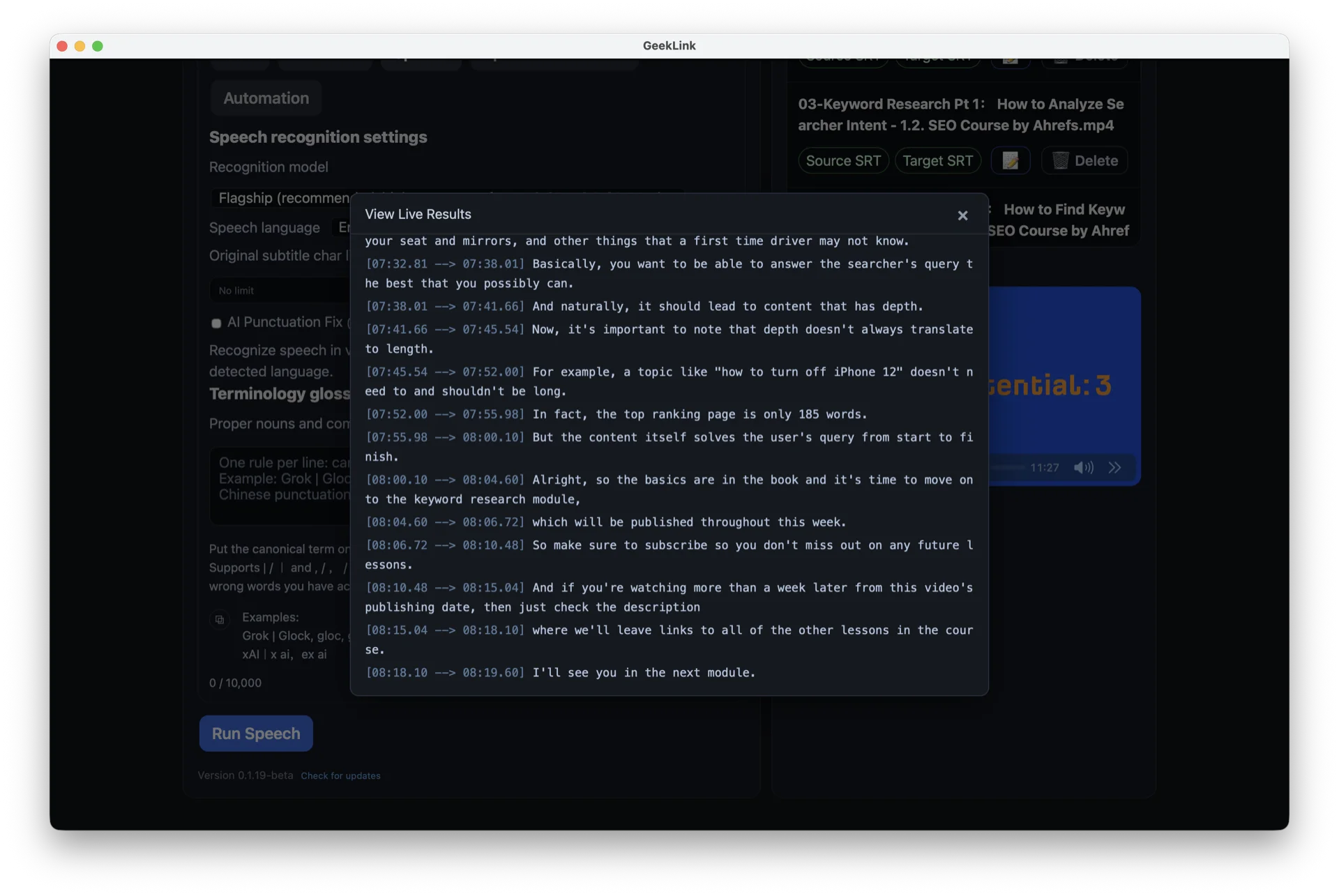
| Button | Location | Action | Availability | Notes |
|---|---|---|---|---|
| ← Dashboard | Top-left | Back to dashboard. | Always | Confirm sampled color before leaving. |
| ← Re-select frame | Above canvas | Go back to frame chooser. | After entering canvas mode | Useful when current frame is unclear. |
| - / + (Zoom) | Toolbar | Zoom out / zoom in. | After selecting frame | Zoom in for precise brushing. |
| 🗑️ Clear brush | Toolbar | Clear sampled pixels and strokes. | After brushing | Quick reset on mis-brush. |
| ✔️ Confirm color | Bottom | Submit sampled color for the OCR run. | After minimum sample is met | Applies to current batch OCR flow. |
2. Library Item Buttons (Dynamic)
Buttons and tags shown per video item based on file status.
| Button | Location | Action | Availability | Notes |
|---|---|---|---|---|
| 📝 Open Editor | Right side of item | Open batch subtitle editor for this video. | When video exists | Reuses the same editor window. |
| 🗑️ Delete | Right side of item | Delete video and related files. | When video exists | Requires confirmation. |
| Embedded Subtitle tag | Tag area | Extract the video's embedded toggleable subtitle (soft subtitle) as the source subtitle; shows a track picker when multiple tracks exist. | Video has embedded text-based subtitles and no source subtitle yet | Tag disappears after extraction and the source subtitle tag appears. Image-based subtitles (e.g. Blu-ray PGS) are not supported. |
| Source subtitle tag | Tag area | Delete source subtitle file. | If source subtitle exists | Needs re-run after deletion. |
| Target subtitle tag | Tag area | Delete target subtitle file. | If target subtitle exists | Needs re-translation after deletion. |
3. Batch Subtitle Editor Buttons
Edit subtitles line-by-line, preview video, mark done, and export.
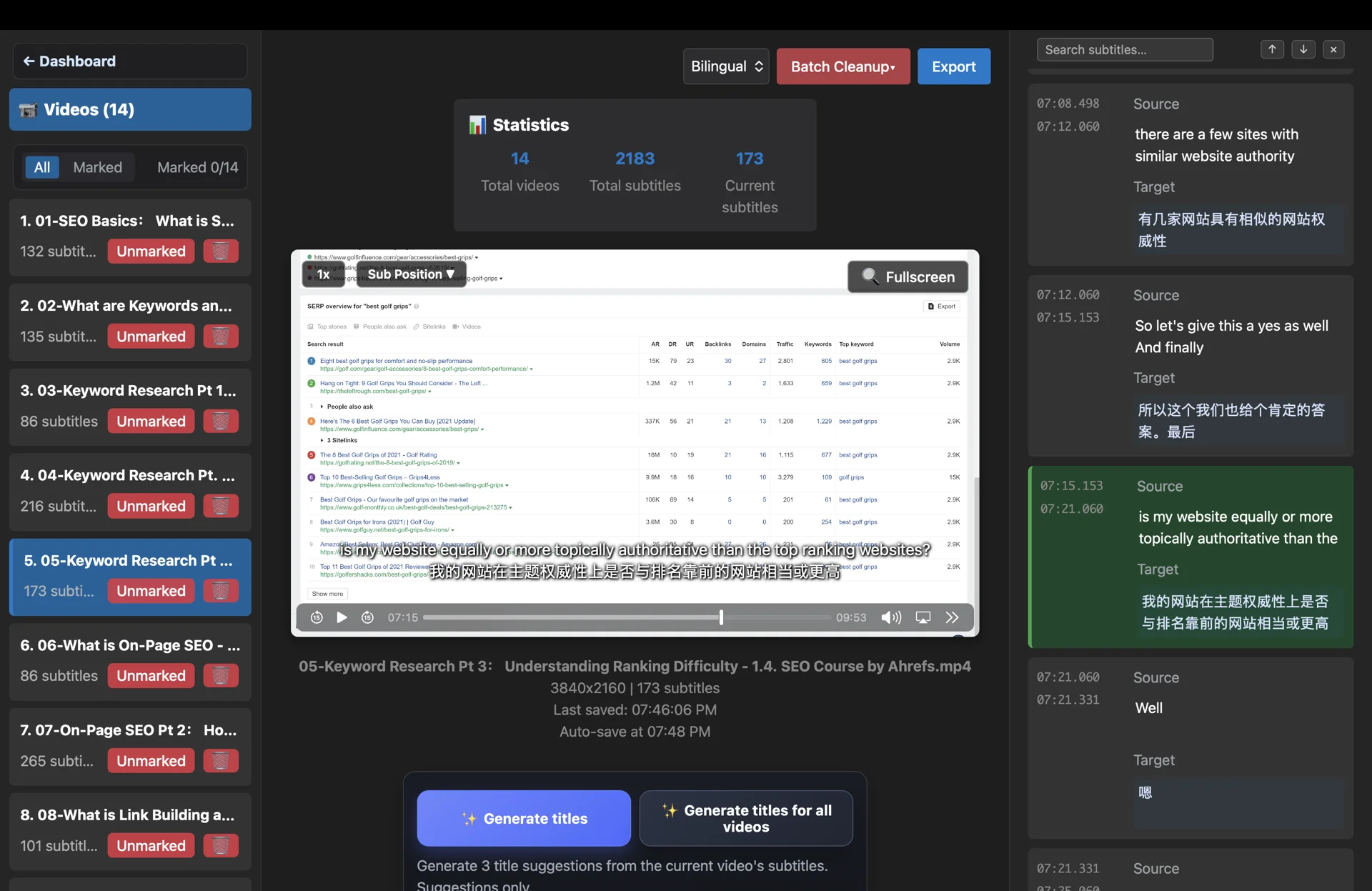
| Button | Location | Action | Availability | Notes |
|---|---|---|---|---|
| ← Dashboard | Left top | Back to dashboard. | Always | Current edits are auto-saved before leaving. |
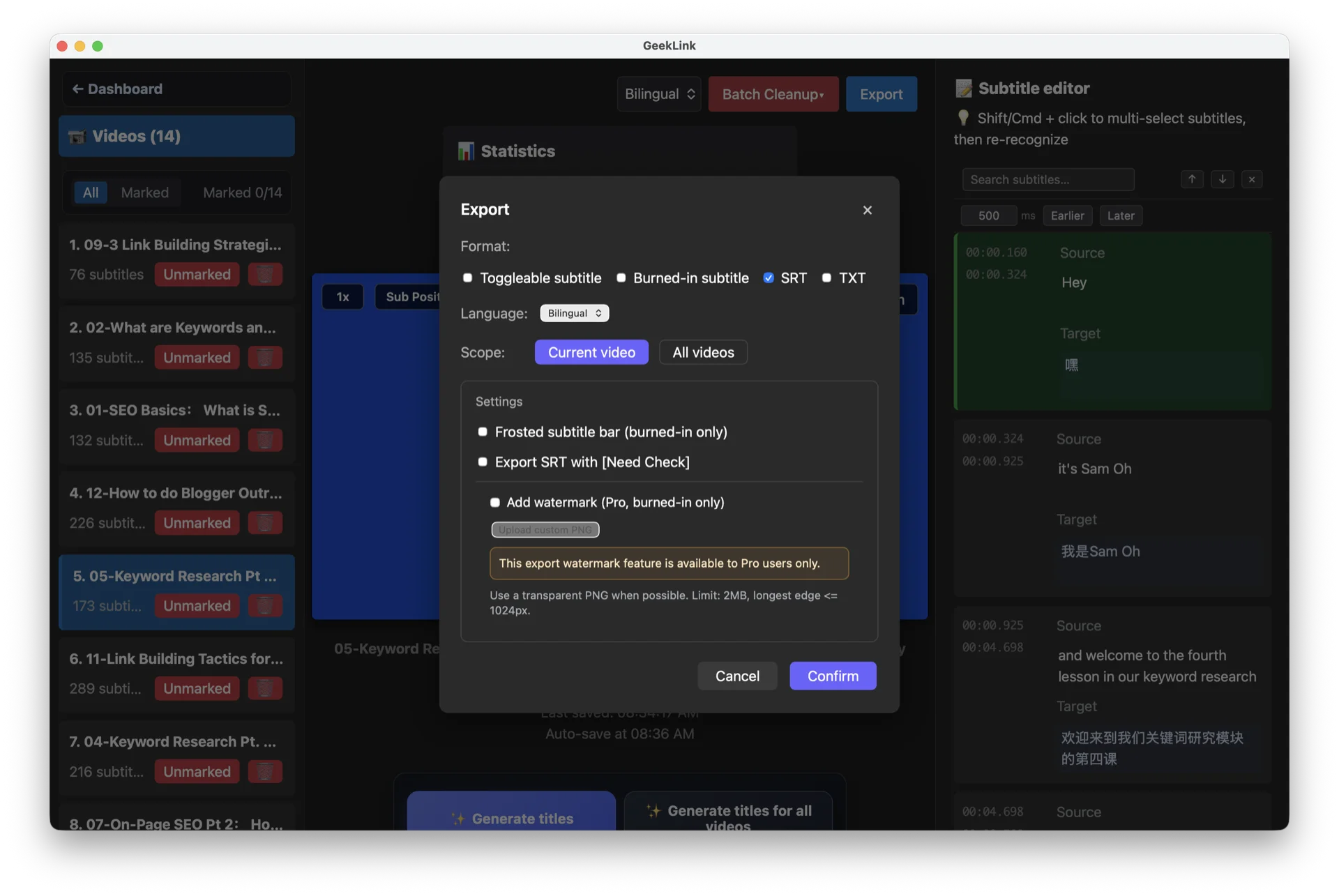
| Export | Top-right | Open export menu. | When exportable videos exist | Includes single and batch export items. |
| Export Current (Toggleable subtitle) | Export menu | Export current video with toggleable subtitle. | Current video available | Subtitle can be turned on/off in player. |
| Export All (Toggleable subtitle) | Export menu | Batch export all videos with toggleable subtitle. | Library not empty | Processing time depends on amount. |
| Export Current (Burned-in subtitle) | Export menu | Export current video with burned-in subtitle. | Current video available | Subtitle is embedded and cannot be toggled. |
| Export All (Burned-in subtitle) | Export menu | Batch export all videos with burned-in subtitle. | Library not empty | Usually slower than toggleable subtitle export. |
| Export current video (plain-text TXT, bilingual) | Export menu | Export current video subtitles as plain text, no timestamps, source and target on separate lines. | Current video has both source and target subtitles | Useful for pasting into documents or translation review tools. |
| Export all videos (plain-text TXT, bilingual) | Export menu | Batch export all video subtitles as plain-text TXT. | Library non-empty, videos have bilingual subtitles | Files are downloaded sequentially. |
| Export current video (SRT only) | Export menu | Export current video subtitles as an SRT file without encoding video; supports source, target, or bilingual modes. | Current video has matching subtitles | Bilingual mode merges source and target into a single SRT; saved to output/srt/. |
| Export all videos (SRT only) | Export menu | Batch export all video subtitles as SRT files without encoding video. | Library non-empty | Files are saved sequentially to output/srt/ — no video encoding needed. |
| Frosted subtitle bar (checkbox) | Export menu | Enable/disable frosted bar style. | When export menu is open | Affects output style only. |
| Append [Need Check] to SRT (checkbox) | Export menu | Add proofread marker to exported SRT. | When export menu is open | Useful for review workflow. |
| Add watermark (Pro, burned-in only) | Export menu | Enable watermark for burned-in subtitle export; default uses the GeekLink watermark. | Pro activated | Does not affect toggleable subtitle export. |
| Upload custom PNG | Export menu | Upload a custom export watermark. | Pro activated | PNG only; transparent background recommended, max 2MB, longest edge <= 1024px. |
| Clear custom watermark | Export menu | Remove the uploaded custom watermark and fall back to the default GeekLink watermark. | Pro activated and a custom watermark exists | Affects future burned-in exports only. |
| 1x | Player area | Cycle playback speed. | When preview is available | Useful for timing review. |
| ▼ | Player area | Toggle subtitle position in preview. | When preview is available | Preview-only behavior. |
| 🔍 Fullscreen | Player area | Toggle pseudo-fullscreen preview. | When preview is available | Helps focused proofreading. |
| 🎬 Transcode & Preview | Transcode prompt | Transcode unsupported video then preview. | When transcode is required | Fixes preview issues for some codecs. |
| 💾 Save Subtitle File | Below player | Trigger manual save immediately. | When editable | Auto-save is still enabled. |
| ✅ Mark All Done and Exit | Below player | Mark all videos done and exit. | Shown only when all are marked done | Conditional button. |
| Mark/Unmark button in list | Left video list | Toggle reviewed state for one video. | When item exists | Affects pre-export warnings. |
| 🗑️ in video list | Left video list | Delete this video from list/library. | When item exists | List and stats refresh immediately. |
| 🔍 (search box) | Top-right of subtitle list | Open subtitle search; highlights matching entries as you type. | When subtitles exist | Shortcut: Cmd+F (Mac) / Ctrl+F (Windows). |
| ↓ (next match) | Search box right side | Jump to next matching subtitle. | Search open, matches found | Shortcut: Enter (when search box is focused). |
| ↑ (previous match) | Search box right side | Jump to previous matching subtitle. | Search open, matches found | Shortcut: Shift+Enter (when search box is focused). |
4. Subtitle Selector Buttons
Filter real subtitle content from candidate text; works for OCR and speech-recognition flows.
| Button | Location | Action | Availability | Notes |
|---|---|---|---|---|
| ← Dashboard | Top-left | Back to dashboard. | Always | Best to confirm selection first. |
| ✅ Select all | Bottom actions | Select all candidate text items. | When candidates exist | Useful for quick initial pass. |
| ❌ Select none | Bottom actions | Clear all selected items. | When candidates exist | Useful for re-selection. |
| ✔️ Confirm selection | Bottom actions | Submit selected items and continue workflow. | When minimum requirement is met | Key confirmation step. |
| 🤖 Auto detect | Bottom actions | Auto-pick likely subtitle items. | When candidates exist | Recommended to quickly review after auto-detect. |
5. Modal Buttons (Activation / Feedback / Update / Pro)
These buttons appear conditionally in dashboard/editor workflows.
| Button | Modal | Action | Availability | Notes |
|---|---|---|---|---|
| Confirm Activation | Activation modal | Submit and validate license key. | After key input | May switch to a close button after success. |
| Cancel | Activation modal | Close modal without activation. | Always | No license status change. |
| Export Logs (zip) | Feedback modal | Export logs to local folder. | After privacy checkbox is checked | Logs may include local paths/subtitle text. |
| Open Folder | Feedback modal | Open exported log folder. | Shown after export success | Useful for attaching to support email. |
| Update and Restart | Update modal | Download update and restart app. | When update is available | Wait for current processing tasks to finish first. If macOS shows a permission prompt, click "Allow" first; only if automatic installation still does not finish should you open the downloaded DMG or get the latest one from the official website and replace the app manually. |
| Later | Update modal | Close update modal. | When update is available | Does not affect current usage. |
| Use Other Translation Method | Pro modal | Continue without Pro engine. | When Pro-only feature is triggered | Temporary workaround. |
| Activate Pro | Pro modal | Enter activation flow. | When Pro-only feature is triggered | Unlocks advanced features. |
| Continue Export | Non-Pro export modal | Continue non-Pro export. | When exporting without Pro | Output may include watermark/ad text. |