TL;DR: A video's subtitles are one of three kinds, and each needs a different method. External — a separate .srt/.ass file you already have. Embedded (soft) — a subtitle track inside the video file (common in MKV); GeekLink detects and extracts it directly on Mac, or use mkvextract. Burned-in (hardcoded) — the text is painted into the video picture, with no track to extract, so you need OCR that reads the frames (GeekLink does this on Mac too). The 5-second test: try to turn the subtitles off in your player. If they disappear, they're a separate track. If they stay on screen no matter what, they're burned into the picture.
If you tried to "extract subtitles" and your tool found nothing — or found something you couldn't use — it's almost always because you're dealing with a different kind of subtitle than the tool expects. Sort out which of the three you have first, and the right method is obvious.
How do I tell which kind I have?
The toggle test. Open the video in VLC (or any player) and look for the subtitle on/off menu. Can you turn the subtitles off?
- They disappear → the subtitles are a separate track (embedded), or an external file. Extractable as text or image.
- They stay stuck on screen no matter what you do → the subtitles are burned into the picture (hardcoded). There's no track — you'll need OCR.
The ffmpeg clue. Run ffmpeg -i yourvideo.mp4. If it lists a Subtitle: stream, you have an embedded track. If it lists none but you can clearly see subtitles in the video, they're burned into the picture (or a closed-caption CC stream that ffmpeg didn't map) — and that's why "extract subtitles" commands return nothing.
Type 1 — External subtitles (.srt / .ass)
The easy case: the subtitles are already a separate file sitting next to the video, or downloadable from a subtitle site. There's nothing to extract — just open or edit the file. If all you need is to translate it into another language, import the .srt into a translator and keep the timings.
Type 2 — Embedded / soft subtitle tracks (MKV, some MP4)
The subtitles are a stream inside the container, so they can be pulled out without any quality loss. There are two sub-cases:
- Text tracks (SRT/ASS/SSA/WebVTT inside an MKV or MP4) → import the video into GeekLink on Mac: it detects the embedded track automatically and extracts it into a clean SRT with one click, no OCR or re-transcription needed. mkvextract (part of MKVToolNix) is a free command-line alternative if you'd rather not install an app.
- Image tracks (DVD VobSub, Blu-ray PGS/SUP) → these are pictures of the text rather than a text stream, so they need an OCR-based subtitle-track tool to convert them to SRT. GeekLink's embedded-track extraction only handles text-based tracks, not this image-track case.
For burned-in text with no track at all — nothing for either tool above to grab — see Type 3 below.
Type 3 — Burned-in / hardcoded subtitles (the hard case)
The words are painted permanently into every frame — no track, no toggle. Track-based tools (including GeekLink's own embedded-track extractor and mkvextract) find nothing to grab, because there's no subtitle stream to point them at. The only way to get the text back is OCR that reads the video picture frame by frame.
- On Windows: VideoSubFinder extracts the subtitle frames, then Subtitle Edit OCRs the images — a two-step process.
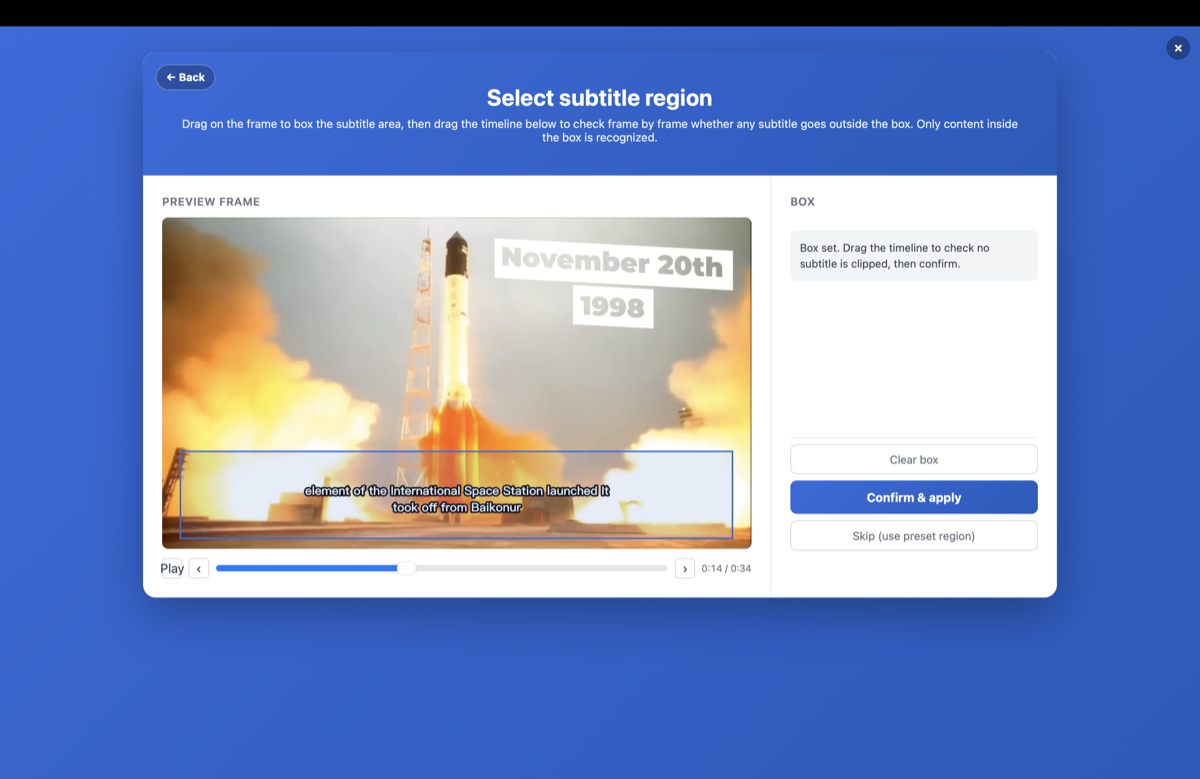
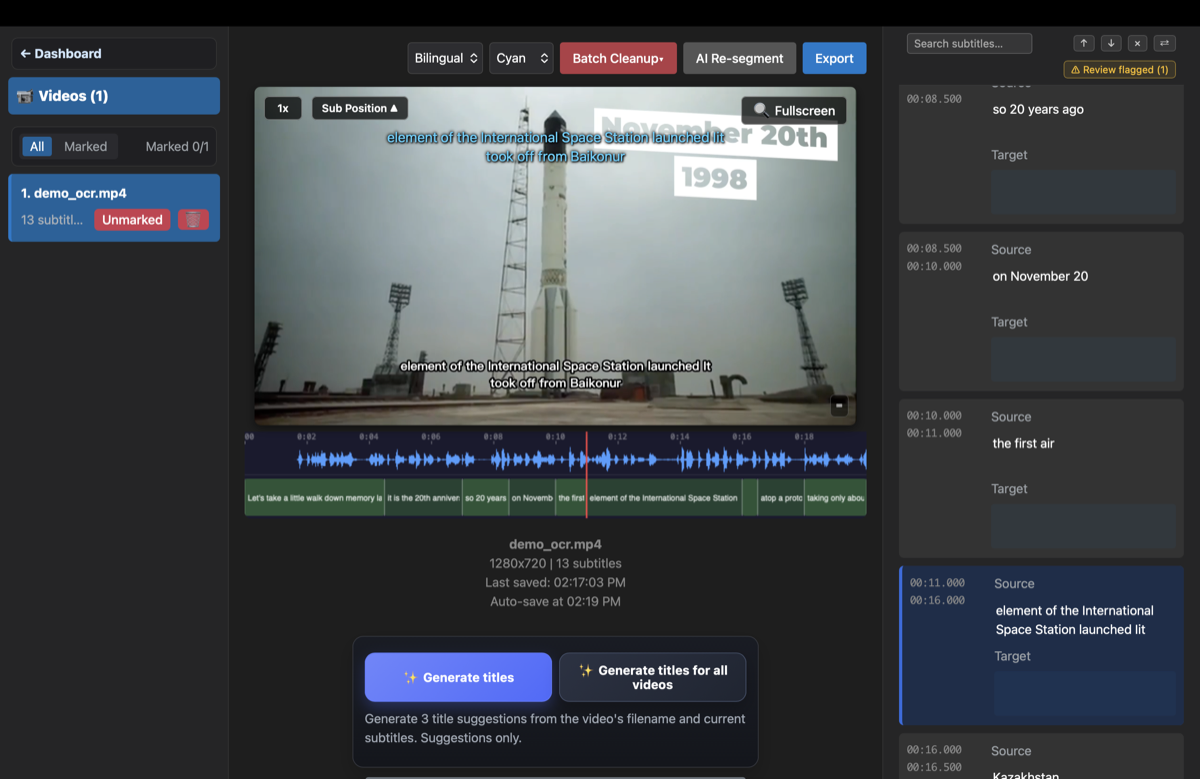
- On Mac: GeekLink does it in one pass. You draw a box over the subtitle area, and it reads the burned-in text into an editable, time-synced SRT — a whole folder at once, locally, free.
Quick decision table
| Your situation | Kind | Do this |
|---|---|---|
| A .srt file sits next to the video | External | Just open or translate it |
VLC lets you turn subtitles off; ffmpeg shows a Subtitle: stream | Embedded (text) | GeekLink (Mac) or mkvextract |
| Turn-off works, but it's a DVD/Blu-ray | Embedded (image) | Image-track OCR tool |
| Subtitles won't turn off — stuck in the picture | Burned-in | Frame OCR — GeekLink (Mac) |
Frequently Asked Questions
How do I know if my subtitles are hardcoded?
If you can't turn them off in your player and they stay stuck on screen, they're burned-in (hardcoded). If a subtitle on/off toggle removes them, they're a separate track.
Can you turn off burned-in subtitles?
No — they're part of the video image, so no player can hide them. You can't remove them, but you can OCR the text back out into an editable SRT.
Why does ffmpeg say "no subtitle track"?
Because the subtitles aren't a track — they're burned into the picture (or a closed-caption CC stream ffmpeg didn't map). Burned-in text needs OCR of the video frames, not track extraction.
What's the difference between soft subs and hard subs?
Soft subs are a separate, toggleable track (extractable as text or image). Hard subs — hardcoded / burned-in — are painted into the picture and need OCR to recover.
Is there a Mac tool for burned-in subtitles?
Yes — GeekLink OCRs burned-in subtitles into an editable SRT natively on recent desktop hardware Macs. It's a free direct download from geeklink.dev (not the Mac App Store), and no account is required.
Can GeekLink extract embedded (soft) subtitle tracks too?
Yes. GeekLink detects text-based embedded tracks (SRT, ASS, SSA, WebVTT) on import and extracts them into a clean SRT with one click — no OCR or re-transcription needed. Image-based embedded tracks (DVD VobSub, Blu-ray PGS) aren't supported; those need a dedicated image-track OCR tool.
Related Articles
Disclosure: GeekLink is our own product. It extracts both embedded (text) subtitle tracks and burned-in (hardcoded) subtitles on Mac. For embedded image tracks (DVD/Blu-ray), or if you're not on a Mac, mkvextract is a free command-line alternative for text tracks.